Archives For November 30, 1999

Short recap: We did the initial setup of the staging server and we prepared the cobbler profile and kickstart file for our boot iso.

So, lets take all these little pieces and put them together for creating a complete lab environment.

The use case is that you want to train some people on a clustered grid infrastructure and asm including the software installation and initial setup. For this each participant needs at least two interconnected lab machines, the oracle software, the oracle users etc.

The test VM we created in the last post already has the oracle users and groups in place as well as the required operating system packages. Additionally we prepared downloading source files from the cobbler server. A perfect starting point.

What we need now is a way to create two or more VMs per participant and and easy deployment method. here we go…

First we slightly need to adjust the kickstart file so that the shared storage devices will not automatically get partitioned during the setup (/var/lib/cobbler/kickstarts/oracledatabaseserver.ks):

...
#autopart
part /boot --fstype ext3 --size=200 --ondisk=sda
part pv.01 --grow --size=1 --ondisk=sda
volgroup vgroot pv.01
logvol  /  --vgname=vgroot --size=4096  --name=lvroot --fstype=ext4 --fsoptions="barrier=0"
logvol  /var  --vgname=vgroot --size=8192  --name=lvvar --fstype=ext4 --fsoptions="barrier=0"
logvol  /var/log/audit  --vgname=vgroot --size=2048  --name=lvaudit --fstype=ext4 --fsoptions="barrier=0"
logvol  /tmp  --vgname=vgroot --size=2048  --name=lvtmp --fstype=ext4 --fsoptions="rw,noexec,nosuid,nodev,auto,nouser,async,barrier=0"
logvol  /home  --vgname=vgroot --size=1024  --name=lvhome --fstype=ext4 --fsoptions="rw,noexec,nosuid,nodev,auto,nouser,async,barrier=0"
logvol  swap  --vgname=vgroot --size=2028 --name=lvswap --fstype=swap
logvol  /opt  --vgname=vgroot --size=1 --grow  --name=lvopt --fstype=ext4 --fsoptions="barrier=0"
...

On the cobbler server in /var/www/html create this script (create_lab.sh):

Update 2015-JAN-05: Attached the script as pdf as some parts of the script are not correctly displayed:
create_lab.pdf

this is a very basic script, no error handling, no deep checks, no documentation but sufficiant to demonstrate the idea. when you call the script pass at least two parameters:

  • the name of the lab you want to create
  • the amount of participants you expect for the lab
  • optionally: the number of VMs that should be created per participant. the default is 2

exexute it:

 ./create_lab.sh MY_LAB 2
Creating ISOs and VM Setup Script for Participant 1
  creating VM 1, name MY_LAB_P_1_VM_1
  creating VM 2, name MY_LAB_P_1_VM_2
Creating ISOs and VM Setup Script for Participant 2
  creating VM 1, name MY_LAB_P_2_VM_1
  creating VM 2, name MY_LAB_P_2_VM_2
   MY_LAB_P_1_VM_1
   MY_LAB_P_1_VM_2
   MY_LAB_P_2_VM_1
   MY_LAB_P_2_VM_2

What has happened? Basically this:

ls -la /var/www/html/MY_LAB/
total 158672
drwxr-xr-x. 2 root root     4096 Dec 16 14:13 .
drwxr-xr-x. 7 root root     4096 Dec 16 14:13 ..
-rw-r--r--. 1 root root 40613888 Dec 16 14:13 MY_LAB_P_1_VM_1.iso
-rw-r--r--. 1 root root 40613888 Dec 16 14:13 MY_LAB_P_1_VM_2.iso
-rw-r--r--. 1 root root 40613888 Dec 16 14:13 MY_LAB_P_2_VM_1.iso
-rw-r--r--. 1 root root 40613888 Dec 16 14:13 MY_LAB_P_2_VM_2.iso
-rw-r--r--. 1 root root     3883 Dec 16 14:13 setup_p_1.sh
-rw-r--r--. 1 root root     3883 Dec 16 14:13 setup_p_2.sh

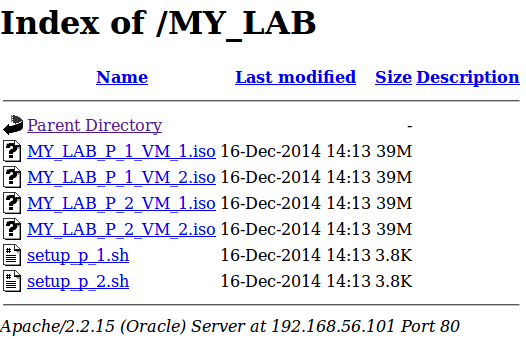
You got two boot isos per participant and one setup script for each participant which will setup the 2 virtualbox vms on a workstation. because everything is placed in a directory which is accessible via http you could just give the link at the beginning of the lab and ask each participant to pickup one of the setup scripts (http://192.168.56.101/MY_LAB in this setup):

Ask them to execute the script on their workstations and the vms will get setup. Once they are started up everything will get installed automatically (choose the VM Name in the initial bootloader and eth0 as the network interface to be configured).

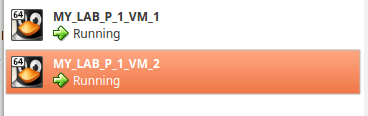
For a short demo I took the 2 VMs generated for participant 1, fired them up and waited for the installation to complete:

Both have the network interfaces configured:

Both have the shared storage devices available (sdb,sdc,sdd):

Both have the oracle users and groups:

And both have opatch available as an example source:

Conclusion: Although you’ll need some time to setup all this stuff once you have it in place you are extremly fexible. If there is a requirement for a different setup just create a new cobbler profile, maybe create a new kickstart file and you’re basically done. The create_lab.sh script needs much more attention, especially if you want to additionally create the vm setup stuff for windows, but this should not be a big deal as the vboxmanage command should work the same way.

Another goody: If some of the participants have plenty of memory and disk on their workstations just generate 3 or more boot isos per participant. Those with lesser resources just can comment or delete the lines for the third and fourth VMs while the others can go with the full set of VMs.

Having completed the intial setup of the staging server now is the time to prepare the kickstart file for the boot isos.

Let’s review our test system on the cobbler server:

cobbler system report list
Name                           : test
TFTP Boot Files                : {}
Comment                        : 
Enable gPXE?                   : 0
Fetchable Files                : {}
Gateway                        : 192.168.56.1
Hostname                       : test.lab.ch
Image                          : 
IPv6 Autoconfiguration         : False
IPv6 Default Device            : 
Kernel Options                 : {}
Kernel Options (Post Install)  : {}
Kickstart                      : <>
Kickstart Metadata             : {}
LDAP Enabled                   : False
LDAP Management Type           : authconfig
Management Classes             : <>
Management Parameters          : <>
Monit Enabled                  : False
Name Servers                   : []
Name Servers Search Path       : []
Netboot Enabled                : True
Owners                         : ['admin']
Power Management Address       : 
Power Management ID            : 
Power Management Password      : 
Power Management Type          : ipmitool
Power Management Username      : 
Profile                        : oel66-x86_64
Proxy                          : <>
Red Hat Management Key         : <>
Red Hat Management Server      : <>
Repos Enabled                  : False
Server Override                : <>
Status                         : production
Template Files                 : {}
Virt Auto Boot                 : <>
Virt CPUs                      : <>
Virt Disk Driver Type          : <>
Virt File Size(GB)             : <>
Virt Path                      : <>
Virt PXE Boot                  : 0
Virt RAM (MB)                  : <>
Virt Type                      : <>
Interface =====                : eth0
Bonding Opts                   : 
Bridge Opts                    : 
CNAMES                         : []
DHCP Tag                       : 
DNS Name                       : test.lab.ch
Per-Interface Gateway          : 
Master Interface               : 
Interface Type                 : 
IP Address                     : 192.168.56.201
IPv6 Address                   : 
IPv6 Default Gateway           : 
IPv6 MTU                       : 
IPv6 Prefix                    : 
IPv6 Secondaries               : []
IPv6 Static Routes             : []
MAC Address                    : 
Management Interface           : False
MTU                            : 
Subnet Mask                    : 255.255.255.0
Static                         : True
Static Routes                  : []
Virt Bridge                    : 

What we want to modify now is the kickstart parameter:

Kickstart                      : <>

As profiles are the core unit for provisioning and kickstart files can be accociated with profiles let’s check our current profiles:

 cobbler profile list
   oel66-x86_64

This one got created when we imported our distribution. As this name does not tell that much about the purpose of the profile lets create a new profile with a more descriptive name:

cobbler profile add --name=OracleDatabaseServer --distro=oel66-x86_64
cobbler profile list
   OracleDatabaseServer
   oel66-x86_64

Let’s see what the newly created profile looks like:

cobbler profile report --name=OracleDatabaseServer
Name                           : OracleDatabaseServer
TFTP Boot Files                : {}
Comment                        : 
DHCP Tag                       : default
Distribution                   : oel66-x86_64
Enable gPXE?                   : 0
Enable PXE Menu?               : 1
Fetchable Files                : {}
Kernel Options                 : {}
Kernel Options (Post Install)  : {}
Kickstart                      : /var/lib/cobbler/kickstarts/default.ks
Kickstart Metadata             : {}
Management Classes             : []
Management Parameters          : <>
Name Servers                   : []
Name Servers Search Path       : []
Owners                         : ['admin']
Parent Profile                 : 
Proxy                          : 
Red Hat Management Key         : <>
Red Hat Management Server      : <>
Repos                          : []
Server Override                : <>
Template Files                 : {}
Virt Auto Boot                 : 1
Virt Bridge                    : xenbr0
Virt CPUs                      : 1
Virt Disk Driver Type          : raw
Virt File Size(GB)             : 5
Virt Path                      : 
Virt RAM (MB)                  : 512
Virt Type                      : xenpv

As we did not specify anything for the kickstart file when we created the profile, the default was applied:

Kickstart                      : /var/lib/cobbler/kickstarts/default.ks

Time to create our first kickstart file and assign it to our profile. The kickstart file below is pretty much default, except:

  • the oracle recommended OS groups are created
  • the oracle recommended OS users are created
  • the oracle required OS packages are installed

We could do much more here, e.g. creating a custom filesystem layout, creating the limits for the oracle users and so on. For the scope of this post, the below shall be sufficiant:

# save to /var/lib/cobbler/kickstarts/oracledatabaseserver.ks
auth  --useshadow  --enablemd5
# System bootloader configuration
bootloader --location=mbr --driveorder=sda --append="audit=1"
# Partition clearing information
clearpart --all --initlabel
# Use text mode install
text
# Firewall configuration
firewall --disabled
# Run the Setup Agent on first boot
firstboot --disable
# System keyboard
keyboard sg-latin1
# System language
lang en_US.UTF-8
# Use network installation
url --url=$tree
# If any cobbler repo definitions were referenced in the kickstart profile, include them here.
$yum_repo_stanza
# Network information
$SNIPPET('network_config')
# Reboot after installation
reboot

#Root password
rootpw --iscrypted $default_password_crypted
# SELinux configuration
selinux --disabled
# Do not configure the X Window System
skipx
# System timezone
timezone  Europe/Zurich
# Install OS instead of upgrade
install
# Clear the Master Boot Record
zerombr
# Allow anaconda to partition the system as needed
autopart

%pre
$SNIPPET('log_ks_pre')
$SNIPPET('kickstart_start')
$SNIPPET('pre_install_network_config')
# Enable installation monitoring
$SNIPPET('pre_anamon')
%end

%packages --excludedocs --nobase
## $SNIPPET('func_install_if_enabled')
kernel
yum
openssh-server
openssh-clients
audit
logrotate
tmpwatch
vixie-cron
crontabs
ksh
ntp
perl
bind-utils
sudo
which
sendmail
wget
redhat-lsb
rsync
authconfig
lsof
unzip
logwatch
libacl
nfs-utils
dhclient
# oracle prereqs begin
gcc
binutils
compat-libcap1
compat-libstdc++-33
glibc
glibc-devel
libX11
libXau
libXext
libXi
libXtst
libaio
libaio-devel
libstdc++
libstdc++-devel
libxcb
make
sysstat
# oracle prereqs end
-firstboot
-tftp-server
-system-config-soundcard
-squashfs-tools
-device-mapper-multipath
-aspell-en
-aspell
-rdate
-dhcpv6-client
-NetworkManager
-rsh
-sysreport
-irda-utils
-rdist
-anacron
-bluez-utils
-talk
-system-config-lvm
-wireless-tools
-setroubleshoot-server
-setroubleshoot-plugins
-setroubleshoot
-ppp
-GConf2
-dhcpv6-client
-iptables-ipv6
-libselinux-python
-setools
-selinux-policy
-libselinux-utils
-chkfontpath
-urw-fonts
-xorg-x11-xfs
-policycoreutils
-selinux-policy-targeted
-ypbind
-yp-tools
-smartmontools
-pcsc-lite
-trousers
-oddjob
-yum-updatesd
-readahead
-pcsc-lite
-gpm
-at
-cpuspeed
-conman
-system-config-securitylevel-tui
-tcsh
-firstboot-tui
-ppp
-rp-pppoe
-system-config-network-tui
-syslinux
-pcsc-lite-libs
-pcmciautils
-pam_smb
-mkbootdisk
-jwhois
-ipsec-tools
-ed
-crash
-Deployment_Guide-en-US
-hal
-pm-utils
-dbus
-dbus-glib
%end

%post --nochroot
$SNIPPET('log_ks_post_nochroot')
%end

%post
$SNIPPET('log_ks_post')
# Start yum configuration
$yum_config_stanza
# End yum configuration

/usr/sbin/groupadd -g 54321 oinstall
/usr/sbin/groupadd -g 54322 dba
/usr/sbin/groupadd -g 54323 oper
/usr/sbin/groupadd -g 54324 backupdba
/usr/sbin/groupadd -g 54325 asmdba
/usr/sbin/groupadd -g 54326 dgdba
/usr/sbin/groupadd -g 54327 kmdba
/usr/sbin/groupadd -g 54328 asmadmin
/usr/sbin/groupadd -g 54329 asmoper
/usr/sbin/useradd -u 54322 -g oinstall -G asmadmin,asmdba grid
/usr/sbin/useradd -u 54323 -g oinstall -G dba,asmdba oracle
/usr/sbin/usermod -p "oracle" oracle
/usr/sbin/usermod -p "oracle" grid

$SNIPPET('post_install_kernel_options')
$SNIPPET('post_install_network_config')
$SNIPPET('func_register_if_enabled')
$SNIPPET('download_config_files')
$SNIPPET('koan_environment')
$SNIPPET('redhat_register')
$SNIPPET('cobbler_register')
# Enable post-install boot notification
$SNIPPET('post_anamon')
# Start final steps
$SNIPPET('kickstart_done')
# End final steps
%end

Assign the kickstart file to the profile:

cobbler profile edit --name=OracleDatabaseServer --kickstart=/var/lib/cobbler/kickstarts/oracledatabaseserver.ks
cobbler profile report --name=OracleDatabaseServer | grep -i kickstart
Kickstart                      : /var/lib/cobbler/kickstarts/oracledatabaseserver.ks
Kickstart Metadata             : {}

Do a cobbler sync:

cobbler sync

And finally create the new boot.iso:

cobbler buildiso --systems="test" --iso=/var/www/html/iso_store/test.iso

Fire up the vm on your workstation as in the previous post:

################## CONFIGURATION SECTION START ##############################

## The name for the VM in VirtualBox
VM_NAME="oel6_test"
## The VMHome for VirtualBox, usually in $HOME
VM_HOME="/media/dwe/My Passport/vm/${VM_NAME}"
## The hard disk to use for the VM, can be anywhere but might
## use up to 60gb. We need plenty of space for hosting the 
## the OEL 6.6 yum repository and any source files for the oracle
## database and gi installation zip files
VM_HARDDISK="/media/dwe/My Passport/vm/${VM_NAME}/oel_test.vdi"
BOOTIMAGEFILE="test.iso"
# we get the boot iso directly from the cobbler server
BOOTIMAGEURL="http://192.168.56.101/iso_store/${BOOTIMAGEFILE}"

################## CONFIGURATION SECTION END  ##############################
################  NO NEED TO EDIT FROM HERE ON ############################X

## Clean up everything before starting the setup
echo ".. Clean up everything before starting the setup"
vboxmanage unregistervm ${VM_NAME} --delete >> /dev/null 2>&1
vboxmanage closemedium disk "${VM_HARDDISK}" --delete >> /dev/null 2>&1
rm -f "${VM_HOME}/*"
mkdir -p "${VM_HOME}"

## Creating Virtual Box Maschine
echo ".. Creating Virtual Box Maschine"
vboxmanage createvm --name ${VM_NAME}  --register --ostype Oracle_64
vboxmanage modifyvm ${VM_NAME} --boot1 disk
vboxmanage modifyvm ${VM_NAME} --boot2 dvd

## Creating Hard Disk for the Virtual Machine
echo "Creating Hard Disk for the Virtual Machine"
vboxmanage createhd --filename "${VM_HARDDISK}" --size 8192

## get the boot iso
cd "${VM_HOME}"
wget ${BOOTIMAGEURL}

## Creating a storage controller and attaching the Hard Disk to the VM
echo "Creating a storage controller and attaching the Hard Disk to the VM"
vboxmanage storagectl ${VM_NAME} --name ctl1 --add sata
vboxmanage storageattach ${VM_NAME} --storagectl ctl1 --type hdd --medium "${VM_HARDDISK}" --port 1

## Creating DVD Drive and attachinf the ISO
echo "Creating DVD Drive and attaching the ISO"
vboxmanage storagectl ${VM_NAME} --name ctl2 --add ide
vboxmanage storageattach ${VM_NAME} --storagectl ctl2 --type dvddrive --port 1 --device 1 --medium "${VM_HOME}/${BOOTIMAGEFILE}"

## Setting VM parameters
echo "Setting VM parameters"
vboxmanage modifyvm ${VM_NAME} --memory 1024 --cpus 1 --nic1 hostonly --cableconnected1 on --hostonlyadapter1 vboxnet0
vboxmanage modifyvm ${VM_NAME} --audio none
vboxmanage modifyvm ${VM_NAME} --usb off

echo "Booting and installing VM"
vboxmanage startvm ${VM_NAME} --type sdl

Sit back, relax and once the VM setup completed: login and check the users and groups:

id -a oracle
uid=54323(oracle) gid=54321(oinstall) groups=54321(oinstall),54322(dba),54325(asmdba)
id -a grid
uid=54322(grid) gid=54321(oinstall) groups=54321(oinstall),54325(asmdba),54328(asmadmin)

Wouldn’t it be nice to have the oracle installation source files already available on the newly created vms? Well, pretty easy:

On the cobbler server create a directory to host the files:

uid=54322(grid) gid=54321(oinstall) groups=54321(oinstall),54325(asmdba),54328(asmadmin)

Transfer the files you want to make available on the VMs to this directory from your workstation (I’ll just copy opatch for now):

scp p6880880_121011_Linux-x86-64.zip root@192.168.56.101:/var/www/html/sources/

Extend the kickstart file for getting the source file in the post section:

...
/usr/sbin/useradd -u 54322 -g oinstall -G asmadmin,asmdba grid
/usr/sbin/useradd -u 54323 -g oinstall -G dba,asmdba oracle
/usr/sbin/usermod -p "oracle" oracle
/usr/sbin/usermod -p "oracle" grid
...
/usr/bin/wget http://192.168.56.101/sources/p6880880_121011_Linux-x86-64.zip -O /var/tmp/p6880880_121011_Linux-x86-64.zip
...

Re-Stage the VM and you’re done.

In the next post I’ll setup a complete lab environment depending on the amount of people who should attend the lab and depending on the amount of VMs they shall get.

Currently I am thinking on how to setup an oracle lab environment with minimal efforts providing the same configuration and standards to all lab machines. There are several tools around which might help in solving this:

docker is much in the press currently. but docker is not designed for systems that use shared storage like the grid infrastructure and rac. this might be possible somehow but it seemed too much of a hack to me. the same with vagrant. as soon as you want to have shared storage it gets difficult.

having thought about all the pros and cons I decided to give cobbler a try. as I do not have a real server to play around the cobbler machine as well as the test clients will be virtual box machines using the host only network adapter.

the below script will setup a virtual box vm using the vboxmanage command. just copy it to your linux workstation and adjust the variables at the top of the script (the script should be easily portable to windows ):

#!/bin/bash

################## CONFIGURATION SECTION START ##############################

## The name for the VM in VirtualBox
VM_NAME="oel6_staging"
## The VMHome for VirtualBox, usually in $HOME
VM_HOME="/media/dwe/My Passport/vm/${VM_NAME}"
## The hard disk to use for the VM, can be anywhere but might
## use up to 60gb. We need plenty of space for hosting the 
## the OEL 6.6 yum repository and any source files for the oracle
## database and gi installation zip files
VM_HARDDISK="/media/dwe/My Passport/vm/${VM_NAME}/oel_staging.vdi"
## The path to the OEL 6.6 iso we are installing from
## The ISO can be downloaded from oracle edelivery at
##   https://edelivery.oracle.com/linux
BOOTIMAGEFILE="$HOME/Downloads/OracleLinux-R6-U6-Server-x86_64-dvd.iso"


################## CONFIGURATION SECTION END  ##############################
################  NO NEED TO EDIT FROM HERE ON ############################X

## Clean up everything before starting the setup
echo ".. Clean up everything before starting the setup"
vboxmanage unregistervm ${VM_NAME} --delete >> /dev/null 2>&1
vboxmanage closemedium disk "${VM_HARDDISK}" --delete >> /dev/null 2>&1
rm -f "${VM_HOME}/*"

## Creating Virtual Box Maschine
echo ".. Creating Virtual Box Maschine"
vboxmanage createvm --name ${VM_NAME}  --register --ostype Oracle_64
vboxmanage modifyvm ${VM_NAME} --boot1 disk
vboxmanage modifyvm ${VM_NAME} --boot2 dvd

## Creating Hard Disk for the Virtual Machine
echo "Creating Hard Disk for the Virtual Machine"
vboxmanage createhd --filename "${VM_HARDDISK}" --size 61440

## Creating a storage controller and attaching the Hard Disk to the VM
echo "Creating a storage controller and attaching the Hard Disk to the VM"
vboxmanage storagectl ${VM_NAME} --name ctl1 --add sata
vboxmanage storageattach ${VM_NAME} --storagectl ctl1 --type hdd --medium "${VM_HARDDISK}" --port 1

## Creating DVD Drive and attachinf the ISO
echo "Creating DVD Drive and attaching the ISO"
vboxmanage storagectl ${VM_NAME} --name ctl2 --add ide
vboxmanage storageattach ${VM_NAME} --storagectl ctl2 --type dvddrive --port 1 --device 1 --medium "${BOOTIMAGEFILE}"

## Setting VM parameters
echo "Setting VM parameters"
vboxmanage modifyvm ${VM_NAME} --memory 1024 --cpus 1 --nic1 nat --cableconnected1 on
vboxmanage modifyvm ${VM_NAME} --natpf1 "guestssh,tcp,,2222,,22"
vboxmanage modifyvm ${VM_NAME} --audio none
vboxmanage modifyvm ${VM_NAME} --usb off

echo "Booting and installing VM"
vboxmanage startvm ${VM_NAME} --type sdl

once you execute the script the vm should start with the oracle linux iso attached to it. basically just click through the installer using a minimal installation and you’re done. for your reference here is a pdf with some screenshots:

Click to access setup_oel66_staging_env_vm.pdf

note: the machine will use the NAT adapter for now as I need to install some packges from the internet. this would not be possible using the host only adapter we will use later on.

As you can see from the last screenhot in the attached pdf we only have the loopback adapter up and running. To enable the network click into the VM Console window and adjust the
ONBOOT parameter to yes:

cat /etc/sysconfig/network-scripts/ifcfg-eth0 | grep ONBOOT
ONBOOT=no

Once done, restart the network and check if eth0 is up:

service network restart
...
ifconfig
eth0      Link encap:Ethernet  HWaddr 08:00:27:21:56:79  
          inet addr:10.0.2.15  Bcast:10.0.2.255  Mask:255.255.255.0
          inet6 addr: fe80::a00:27ff:fe21:5679/64 Scope:Link
          UP BROADCAST RUNNING MULTICAST  MTU:1500  Metric:1
          RX packets:398 errors:0 dropped:0 overruns:0 frame:0
          TX packets:252 errors:0 dropped:0 overruns:0 carrier:0
          collisions:0 txqueuelen:1000 
          RX bytes:38219 (37.3 KiB)  TX bytes:41027 (40.0 KiB)

lo        Link encap:Local Loopback  
          inet addr:127.0.0.1  Mask:255.0.0.0
          inet6 addr: ::1/128 Scope:Host
          UP LOOPBACK RUNNING  MTU:65536  Metric:1
          RX packets:0 errors:0 dropped:0 overruns:0 frame:0
          TX packets:0 errors:0 dropped:0 overruns:0 carrier:0
          collisions:0 txqueuelen:0 
          RX bytes:0 (0.0 b)  TX bytes:0 (0.0 b)

From now on you are able to connect from your workstation:

ssh -o Port=2222 root@localhost

The 2222 port comes from the NAT network we defined for the VM:

vboxmanage modifyvm ${VM_NAME} --natpf1 "guestssh,tcp,,2222,,22"

To avoid any issues with iptables and selinux turn it off and reboot the machine:

chkconfig iptables off
service iptables stop

note: as of rhel/centos/oel 6.6 (or even earlier) is not possible to turn of selinux by editing the /etc/sysconfig/selinux file. to permanently turn it of we’ll need to adjust the grub configuration. To do this just add “enforcing=0” to each kernel line in /etc/grub.cong and reboot the machine:

grep "enforcing=0" /etc/grub.conf
...
	kernel /vmlinuz-3.8.13-55.1.1.el6uek.x86_64 ro root=/dev/mapper/vg_oelstaging-lv_root rd_NO_LUKS LANG=en_US.UTF-8 rd_LVM_LV=vg_oelstaging/lv_root rd_NO_MD SYSFONT=latarcyrheb-sun16 crashkernel=auto  KEYBOARDTYPE=pc KEYTABLE=sg rd_NO_DM rd_LVM_LV=vg_oelstaging/lv_swap rhgb quiet enforcing=0
	kernel /vmlinuz-2.6.32-504.1.3.el6.x86_64 ro root=/dev/mapper/vg_oelstaging-lv_root rd_NO_LUKS LANG=en_US.UTF-8 rd_LVM_LV=vg_oelstaging/lv_root rd_NO_MD SYSFONT=latarcyrheb-sun16 crashkernel=auto  KEYBOARDTYPE=pc KEYTABLE=sg rd_NO_DM rd_LVM_LV=vg_oelstaging/lv_swap rhgb quiet enforcing=0
	kernel /vmlinuz-3.8.13-44.1.1.el6uek.x86_64 ro root=/dev/mapper/vg_oelstaging-lv_root rd_NO_LUKS LANG=en_US.UTF-8 rd_LVM_LV=vg_oelstaging/lv_root rd_NO_MD SYSFONT=latarcyrheb-sun16 crashkernel=auto  KEYBOARDTYPE=pc KEYTABLE=sg rd_NO_DM rd_LVM_LV=vg_oelstaging/lv_swap rhgb quiet enforcing=0
	kernel /vmlinuz-2.6.32-504.el6.x86_64 ro root=/dev/mapper/vg_oelstaging-lv_root rd_NO_LUKS LANG=en_US.UTF-8 rd_LVM_LV=vg_oelstaging/lv_root rd_NO_MD SYSFONT=latarcyrheb-sun16 crashkernel=auto  KEYBOARDTYPE=pc KEYTABLE=sg rd_NO_DM rd_LVM_LV=vg_oelstaging/lv_swap rhgb quiet enforcing=0

So our base installation is ready. Let’s get the latest updates and install all the packages we need for operating cobbler.
Note: If you are behind a proxy, now it is the time to set it for yum being able to connect to the internet:

export http_proxy=http://[proxy]:[port]
export https_proxy=http://[proxy]:[port]

Do an update of all the packages currently installed:

yum -y update

Cobbler is available through the epel repository which we need to add first:

rpm -Uvh http://download.fedoraproject.org/pub/epel/6/x86_64/epel-release-6-8.noarch.rpm

Install the required packages:

yum install -y openssh-clients wget cobbler cobbler-web syslinux pykickstart createrepo httpd mkisofs mod_wsgi mod_ssl python-cheetah python-netaddr python-simplejson python-urlgrabber PyYAML rsync syslinux tftp-server yum-utils Django dhcp

As everything we need is now installed and we do not need to connect to the internet anymore let’s switch the VM to the host only network.
Shutdown the machine:

shutdown -h 0

From your workstation adjust the VM configuration and start it up again:

vboxmanage modifyvm oel_staging --nic1 hostonly --hostonlyadapter1 vboxnet0
nohup vboxmanage startvm oel_staging --type sdl &

Click in the VM Console and check your current ip address (should be 192.168.56.101 if you did not change the virtual box’ host only network):

ifconfig
eth0      Link encap:Ethernet  HWaddr 08:00:27:D6:B2:CE  
          inet addr:192.168.56.101  Bcast:192.168.56.255  Mask:255.255.255.0
          inet6 addr: fe80::a00:27ff:fed6:b2ce/64 Scope:Link
          UP BROADCAST RUNNING MULTICAST  MTU:1500  Metric:1
          RX packets:75 errors:0 dropped:0 overruns:0 frame:0
          TX packets:50 errors:0 dropped:0 overruns:0 carrier:0
          collisions:0 txqueuelen:1000 
          RX bytes:13775 (13.4 KiB)  TX bytes:10020 (9.7 KiB)

lo        Link encap:Local Loopback  
          inet addr:127.0.0.1  Mask:255.0.0.0
          inet6 addr: ::1/128 Scope:Host
          UP LOOPBACK RUNNING  MTU:65536  Metric:1
          RX packets:0 errors:0 dropped:0 overruns:0 frame:0
          TX packets:0 errors:0 dropped:0 overruns:0 carrier:0
          collisions:0 txqueuelen:0 
          RX bytes:0 (0.0 b)  TX bytes:0 (0.0 b)

Connections from the workstation to the VM from now on are established like:

ssh root@192.168.56.101

To be sure this IP does not change we change the VM network confiruation for eth0 from dhcp to static and restart the network:

# adjust the ifcfg-eth0 file
cat /etc/sysconfig/network-scripts/ifcfg-eth0
DEVICE=eth0
TYPE=Ethernet
ONBOOT=yes
NM_CONTROLLED=yes
BOOTPROTO=static
IPADDR=192.168.56.101

# restart the network
service network restart

Time to make some basic cobbler configurations. The main cobbler configuration file is /etc/cobbler/settings.

For any new system that get’s generated by cobbler there needs to be a root password. Let’s create one and write it to the settings file (I’ll use admin123):

openssl passwd -1
Password: 
Verifying - Password: 
$1$5E2W.o99$UTCUZnZQrFFQuPpvgILHD.

Put the generated password to the settings file (if you do not want to use sed just edit the file with your favorite editor):

sed -i 's/default_password_crypted.*$/default_password_crypted\: \"\$1\$5E2W.o99\$UTCUZnZQrFFQuPpvgILHD\."/' /etc/cobbler/settings

Next we need to adjust the server settings:

sed -i 's/server\: 127.0.0.1/server\: 192.168.56.101/' /etc/cobbler/settings
sed -i 's/manage_dhcp\: 0/manage_dhcp\: 1/' /etc/cobbler/settings

This should result in the following:

egrep "server|manage_dhcp" /etc/cobbler/settings | grep -v "#"
build_reporting_smtp_server: "localhost"
default_name_servers: []
ldap_server: "ldap.example.com"
manage_dhcp: 1
next_server: 192.168.56.101
redhat_management_server: "xmlrpc.rhn.redhat.com"
server: 192.168.56.101

The next part is to modify the dhcp template (although we do not use it for the scope of this post). The “subnet” block should look like this:

subnet 192.168.56.0 netmask 255.255.255.0 {
     option routers             192.168.56.1;
     option domain-name-servers 192.168.56.1;
     option subnet-mask         255.255.255.0;
     range dynamic-bootp        192.168.56.200 192.168.56.254;
     default-lease-time         21600;
     max-lease-time             43200;
     next-server                $next_server;
     class "pxeclients" {
          match if substring (option vendor-class-identifier, 0, 9) = "PXEClient";
          if option pxe-system-type = 00:02 {
                  filename "ia64/elilo.efi";
          } else if option pxe-system-type = 00:06 {
                  filename "grub/grub-x86.efi";
          } else if option pxe-system-type = 00:07 {
                  filename "grub/grub-x86_64.efi";
          } else {
                  filename "pxelinux.0";
          }
     }

}

Now we are ready to enable and start the services:

chkconfig cobblerd on
chkconfig httpd on
service cobblerd start
service httpd start

Cobbler provides a check command which we now should use to see if we are fine with our configuration:

cobbler check
The following are potential configuration items that you may want to fix:

1 : SELinux is enabled. Please review the following wiki page for details on ensuring cobbler works correctly in your SELinux environment:
    https://github.com/cobbler/cobbler/wiki/Selinux
2 : dhcpd is not installed
3 : some network boot-loaders are missing from /var/lib/cobbler/loaders, you may run 'cobbler get-loaders' to download them, or, if you only want to handle x86/x86_64 netbooting, you may ensure that you have installed a *recent* version of the syslinux package installed and can ignore this message entirely.  Files in this directory, should you want to support all architectures, should include pxelinux.0, menu.c32, elilo.efi, and yaboot. The 'cobbler get-loaders' command is the easiest way to resolve these requirements.
4 : change 'disable' to 'no' in /etc/xinetd.d/rsync
5 : debmirror package is not installed, it will be required to manage debian deployments and repositories
6 : fencing tools were not found, and are required to use the (optional) power management features. install cman or fence-agents to use them

Restart cobblerd and then run 'cobbler sync' to apply changes.

We safely can ignore those messages for the moment.

Let’s do the first sync:

cobbler sync
...
task started: 2014-12-12_132415_sync
task started (id=Sync, time=Fri Dec 12 13:24:15 2014)
running pre-sync triggers
cleaning trees
removing: /var/lib/tftpboot/pxelinux.cfg/default
removing: /var/lib/tftpboot/grub/efidefault
removing: /var/lib/tftpboot/grub/images
removing: /var/lib/tftpboot/s390x/profile_list
copying bootloaders
copying: /usr/share/syslinux/pxelinux.0 -> /var/lib/tftpboot/pxelinux.0
copying: /usr/share/syslinux/menu.c32 -> /var/lib/tftpboot/menu.c32
copying: /usr/share/syslinux/memdisk -> /var/lib/tftpboot/memdisk
copying distros to tftpboot
copying images
generating PXE configuration files
generating PXE menu structure
rendering DHCP files
generating /etc/dhcp/dhcpd.conf
rendering TFTPD files
generating /etc/xinetd.d/tftp
cleaning link caches
running post-sync triggers
running python triggers from /var/lib/cobbler/triggers/sync/post/*
running python trigger cobbler.modules.sync_post_restart_services
running: dhcpd -t -q
received on stdout: 
received on stderr: 
running: service dhcpd restart
received on stdout: Starting dhcpd: [  OK  ]

received on stderr: 
running shell triggers from /var/lib/cobbler/triggers/sync/post/*
running python triggers from /var/lib/cobbler/triggers/change/*
running python trigger cobbler.modules.scm_track
running shell triggers from /var/lib/cobbler/triggers/change/*

Looks fine. Time to import our first distribution (which will be same ISO we used for setting up the VM). Go back to your workstation and copy the oel 6.6 iso to the vm:

scp OracleLinux-R6-U6-Server-x86_64-dvd.iso root@192.168.56.101:/var/tmp/

Back into the VM we’ll import this iso into cobbler:

mount -o loop,ro /var/tmp/OracleLinux-R6-U6-Server-x86_64-dvd.iso /mnt
cobbler import --name=oel66 --arch=x86_64 --path=/mnt
...
*** TASK COMPLETE ***

So, we have our first distro in cobbler:

cobbler distro list
   oel66-x86_64

cobbler distro report --name=oel66-x86_64
Name                           : oel66-x86_64
Architecture                   : x86_64
TFTP Boot Files                : {}
Breed                          : redhat
Comment                        : 
Fetchable Files                : {}
Initrd                         : /var/www/cobbler/ks_mirror/oel66-x86_64/images/pxeboot/initrd.img
Kernel                         : /var/www/cobbler/ks_mirror/oel66-x86_64/images/pxeboot/vmlinuz
Kernel Options                 : {}
Kernel Options (Post Install)  : {}
Kickstart Metadata             : {'tree': 'http://@@http_server@@/cblr/links/oel66-x86_64'}
Management Classes             : []
OS Version                     : rhel6
Owners                         : ['admin']
Red Hat Management Key         : <>
Red Hat Management Server      : <>
Template Files                 : {}

Time to create a new system:

cobbler system add --name=test --profile=oel66-x86_64
cobbler system list

Let’s do some configuration for the newly created system:

cobbler system edit --name=test --interface=eth0 --ip-address=192.168.56.201 --netmask=255.255.255.0 --static=1 --dns-name=test.lab.ch 
cobbler system edit --name=test --gateway=192.168.56.1 --hostname=test.lab.ch
cobbler system report test

Let’s build the iso:

mkdir /var/www/html/iso_store/
cobbler buildiso --systems="test" --iso=/var/www/html/iso_store/test.iso

Now we have an iso we can boot from and everything is retrieved from the cobbler server. Let’s try it on our workstation with the following script:

#!/bin/bash

################## CONFIGURATION SECTION START ##############################

## The name for the VM in VirtualBox
VM_NAME="oel6_test"
## The VMHome for VirtualBox, usually in $HOME
VM_HOME="/media/dwe/My Passport/vm/${VM_NAME}"
## The hard disk to use for the VM, can be anywhere but might
## use up to 60gb. We need plenty of space for hosting the 
## the OEL 6.6 yum repository and any source files for the oracle
## database and gi installation zip files
VM_HARDDISK="/media/dwe/My Passport/vm/${VM_NAME}/oel_test.vdi"
BOOTIMAGEFILE="test.iso"
# we get the boot iso directly from the cobbler server
BOOTIMAGEURL="http://192.168.56.101/iso_store/${BOOTIMAGEFILE}"

################## CONFIGURATION SECTION END  ##############################
################  NO NEED TO EDIT FROM HERE ON ############################X

## Clean up everything before starting the setup
echo ".. Clean up everything before starting the setup"
vboxmanage unregistervm ${VM_NAME} --delete >> /dev/null 2>&1
vboxmanage closemedium disk "${VM_HARDDISK}" --delete >> /dev/null 2>&1
rm -rf "${VM_HOME}"
mkdir -p "${VM_HOME}"

## Creating Virtual Box Maschine
echo ".. Creating Virtual Box Maschine"
vboxmanage createvm --name ${VM_NAME}  --register --ostype Oracle_64
vboxmanage modifyvm ${VM_NAME} --boot1 disk
vboxmanage modifyvm ${VM_NAME} --boot2 dvd

## Creating Hard Disk for the Virtual Machine
echo "Creating Hard Disk for the Virtual Machine"
vboxmanage createhd --filename "${VM_HARDDISK}" --size 8192

## get the boot iso
cd "${VM_HOME}"
wget ${BOOTIMAGEURL}

## Creating a storage controller and attaching the Hard Disk to the VM
echo "Creating a storage controller and attaching the Hard Disk to the VM"
vboxmanage storagectl ${VM_NAME} --name ctl1 --add sata
vboxmanage storageattach ${VM_NAME} --storagectl ctl1 --type hdd --medium "${VM_HARDDISK}" --port 1

## Creating DVD Drive and attachinf the ISO
echo "Creating DVD Drive and attaching the ISO"
vboxmanage storagectl ${VM_NAME} --name ctl2 --add ide
vboxmanage storageattach ${VM_NAME} --storagectl ctl2 --type dvddrive --port 1 --device 1 --medium "${VM_HOME}/${BOOTIMAGEFILE}"

## Setting VM parameters
echo "Setting VM parameters"
vboxmanage modifyvm ${VM_NAME} --memory 1024 --cpus 1 --nic1 hostonly --cableconnected1 on
vboxmanage modifyvm ${VM_NAME} --audio none
vboxmanage modifyvm ${VM_NAME} --usb off

echo "Booting and installing VM"
vboxmanage startvm ${VM_NAME} --type sdl

Choose “test” in the boot screen, sit back and see how the vm gets installed :)

Time to close this first post on the topic. In the next part I’ll show how to create customer cobbler profile, attach a custom kickstart file to it and fire up a VM that has all the oracle required OS packages and users alreay installed and configured.

saves another few clicks :) :

echo "alias newsr='nohup firefox https://support.oracle.com/epmos/faces/SrCreate &'" >> ~/.bashrc
. ~/.bashrc
newsr

today I browsed the red news and came over this: Keep an eye on these 5 new features in RHEL 7. I did know about systemd, docker, xfs. I don’t care about AD integration, at least currently. but what is Performance Co-Pilot?

quickly checked the documentation and it seemed pretty interesting. especially that there is a plugin for postgres. so, lets take a look (short intro, only :) ):

for my tests a quick setup of postgres using the sample makefile posted some while ago is sufficient (do not use a development snapshot as pcp does not support this. I used 9.3.5 for the tests):

yum install -y wget readline-devel bzip2 zlib-devel
groupadd postgres
useradd -g postgres postgres
su - postgres
-- get makefile
make fromscratch
install/bin/psql
psql (9.3.5)
Type "help" for help.

so far, so good. lets get the pcp packages:

yum install pcp pcp-gui

enable and start pcp:

chkconfig pmcd on
chkconfig --list | grep pmcd
/etc/init.d/pmcd start

easy. let’s see if pmatop works:

pmatop

pmatop

great. pminfo tells you what metrics are available currently:

pminfo -f
...
kernel.percpu.interrupts.SPU
    inst [0 or "cpu0"] value 0

kernel.percpu.interrupts.LOC
    inst [0 or "cpu0"] value 747300
...

a lot of stuff but nothing directly related to postgres except some information about the processes:

pminfo -f | grep -i postgres
...
    inst [12665 or "012665 /home/postgres/install/bin/postgres -D /home/postgres/data"] value 12665
    inst [12667 or "012667 postgres: checkpointer process   "] value 12667
    inst [12668 or "012668 postgres: writer process   "] value 12668
    inst [12669 or "012669 postgres: wal writer process   "] value 12669
    inst [12670 or "012670 postgres: autovacuum launcher process   "] value 12670
    inst [12671 or "012671 postgres: stats collector process   "] value 12671
...

according to the documentation pmdapostgres “Extracts performance metrics from the PostgreSQL relational database”. reading over and over again it became clear what to do. all these tools need to be installed first, so:

cd /var/lib/pcp/pmdas/postgresql
./Install 
Perl database interface (DBI) is not installed

ok:

yum install -y perl-DBI

next try:

./Install 
Postgres database driver (DBD::Pg) is not installed

gr:

yum install perl-DBD-Pg

and again:

./Install 
You will need to choose an appropriate configuration for installation of
the "postgresql" Performance Metrics Domain Agent (PMDA).

  collector	collect performance statistics on this system
  monitor	allow this system to monitor local and/or remote systems
  both		collector and monitor configuration for this system

Please enter c(ollector) or m(onitor) or b(oth) [b] b
Updating the Performance Metrics Name Space (PMNS) ...
Terminate PMDA if already installed ...
Updating the PMCD control file, and notifying PMCD ...
Waiting for pmcd to terminate ...
Starting pmcd ... 
Check postgresql metrics have appeared ... 15 warnings, 208 metrics and 0 values

much better. lets see if something is available now:

pminfo -f | grep -i postgres
...
postgresql.stat.all_tables.last_vacuum
postgresql.stat.all_tables.n_dead_tup
postgresql.stat.all_tables.seq_scan
postgresql.stat.all_tables.last_autoanalyze
postgresql.stat.all_tables.schemaname
postgresql.stat.all_tables.n_live_tup
postgresql.stat.all_tables.idx_tup_fetch
...

cool. can I get some values?

pminfo -f postgresql.stat.all_tables.n_tup_upd

postgresql.stat.all_tables.n_tup_upd
No value(s) available!

hm. not really what I expected. looking at the logfile:

tail -100 /var/log/pcp/pmcd/postgresql.log
...
DBI connect('dbname=postgres','postgres',...) failed: could not connect to server: No such file or directory
	Is the server running locally and accepting
	connections on Unix domain socket "/var/run/postgresql/.s.PGSQL.5432"? at /var/lib/pcp/pmdas/postgresql/pmdapostgresql.pl line 252.

ok, seems connections to postgresql are not possible. the issue is that DBI looks for the sockets at “/var/run/postgresql/”. checking my postgresql.conf:

#unix_socket_directories = '/tmp'	# comma-separated list of directories
#unix_socket_group = ''			# (change requires restart)
#unix_socket_permissions = 0777		# begin with 0 to use octal notation

easy to fix:

su -
mkdir /var/run/postgresql/
chown postgres:postgres /var/run/postgresql/
su - postgres
echo "unix_socket_directories = '/var/run/postgresql/'" >> postgresql.conf

restart postgresql:

install/bin/pg_ctl stop -D data/
install/bin/pg_ctl start -D data/

checking again:

pminfo -f postgresql.stat.all_tables.n_tup_upd

postgresql.stat.all_tables.n_tup_upd
    inst [1261 or "pg_auth_members"] value 0
    inst [2617 or "pg_operator"] value 0
    inst [2600 or "pg_aggregate"] value 0
    inst [1136 or "pg_pltemplate"] value 0
    inst [12529 or "sql_implementation_info"] value 0
    inst [2609 or "pg_description"] value 0
    inst [2612 or "pg_language"] value 0
    inst [12539 or "sql_packages"] value 0
    inst [3601 or "pg_ts_parser"] value 0
    inst [3466 or "pg_event_trigger"] value 0
    inst [3592 or "pg_shseclabel"] value 0
    inst [3118 or "pg_foreign_table"] value 0

much better. but not really nice to read. this is where pmchart comes into the game:

pmchart &

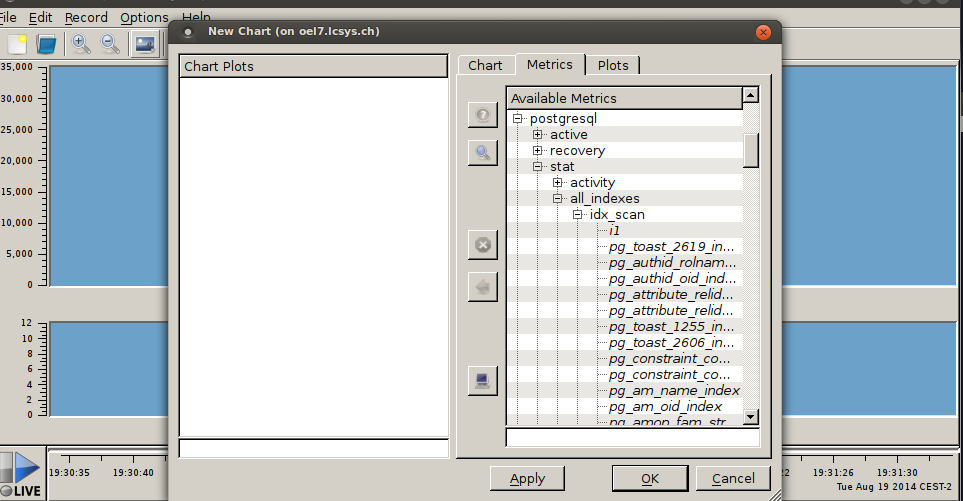
metric selection
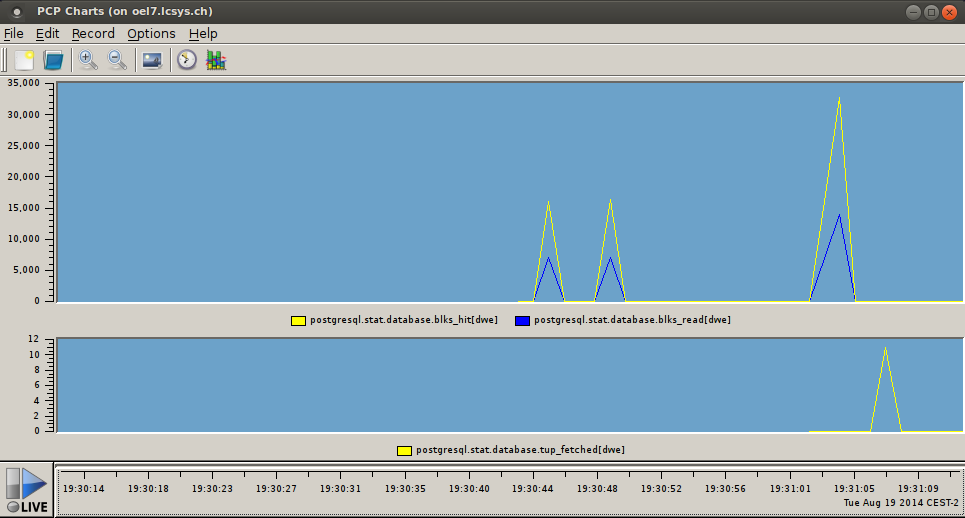
real time graphs

now performance data can be viewed in realtime…really cool.

if you are working on written requirements there is a need to exactly define the meaning of words. The The Internet Engineering Task Force (IETF) already did this for some keywords:

1. MUST   This word, or the terms "REQUIRED" or "SHALL", mean that the
   definition is an absolute requirement of the specification.

2. MUST NOT   This phrase, or the phrase "SHALL NOT", mean that the
   definition is an absolute prohibition of the specification.

3. SHOULD   This word, or the adjective "RECOMMENDED", mean that there
   may exist valid reasons in particular circumstances to ignore a
   particular item, but the full implications must be understood and
   carefully weighed before choosing a different course.

4. SHOULD NOT   This phrase, or the phrase "NOT RECOMMENDED" mean that
   there may exist valid reasons in particular circumstances when the
   particular behavior is acceptable or even useful, but the full
   implications should be understood and the case carefully weighed
   before implementing any behavior described with this label.

5. MAY   This word, or the adjective "OPTIONAL", mean that an item is
   truly optional.  One vendor may choose to include the item because a
   particular marketplace requires it or because the vendor feels that
   it enhances the product while another vendor may omit the same item.
   An implementation which does not include a particular option MUST be
   prepared to interoperate with another implementation which does
   include the option, though perhaps with reduced functionality. In the
   same vein an implementation which does include a particular option
   MUST be prepared to interoperate with another implementation which
   does not include the option (except, of course, for the feature the
   option provides.)

The whole document can be found here.

ever wanted to quickly display the directory structure and files in there? use tree:

~/VirtualBox VMs $ tree
.
├── centOS_latest
│   ├── centOS_latest.vbox
│   ├── centOS_latest.vbox-prev
│   ├── centOS_latest.vdi
│   ├── Logs
│   │   ├── VBox.log
│   │   ├── VBox.log.1
│   │   ├── VBox.log.2
│   │   └── VBox.log.3
│   └── Snapshots
│       └── 2013-12-13T09-27-06-012274000Z.sav
├── nohup.out
├── oel_latest
│   ├── Logs
│   │   ├── VBox.log
│   │   ├── VBox.log.1
│   │   ├── VBox.log.2
│   │   └── VBox.log.3
│   ├── oel_latest.vbox
│   ├── oel_latest.vbox-prev
│   └── Snapshots
│       └── 2013-08-19T13-58-33-388114000Z.sav
...

… just came across a nice option of tar while reading the man pages on how to exlude hidden files from being tared. there is another option “–exclude-vcs”:

tar --exclude-vcs -cvf something.tar somethingtotar

good to know.

this at least works with subversion. did not try any other vcs. btw, my version of tar is:

tar --version
tar (GNU tar) 1.26
Copyright (C) 2011 Free Software Foundation, Inc.

nothing special but maybe this might help someone. this is a simple bash script which automates the installation of the oracle 12c binaries and creates an initial oracle database. all you have to do is to download the sources, adjust the parameters in the configuration section and execute the script. if you keep the script as it is (except for SOURCEPATH) you will get the following:

ORACLE_SID=orcl
ORACLE_BASE=/opt/oracle/product/base
ORACLE_HOME=/opt/oracle/product/base/12.1.0.1
oraInventory=/opt/oracle/oraInventory
/oradata/orcl/...    for the database files
standard oracle user and oracle groups

this is for redhat6 based distributions only (rhel6, ol6, centos6 (not supported, but works)).

as the script installs the required linux software you should have the yum repositories available somehow ( either you are connected to the internet or you have a local copy of the repositories ).

btw: the logs can be found in the home of the oracle user.
btw2: the script does not create the limits (ulimit) recommended by oracle as the defaults should be fine for testing

#!/bin/bash

##################################################
#         CONFIGURATION SECTION                  #
##################################################

# ** location of the database source files
SOURCEPATH=/home/daniel/Downloads
# ** name of the first source file
SOURCE1=linuxamd64_12c_database_1of2.zip
# ** name of the second source file
SOURCE2=linuxamd64_12c_database_2of2.zip
# ** working directory for extracting the source
WORKDIR=/opt/oracle/stage
# ** the oracle top directory
ORATOPDIR=/opt/oracle
# ** the oracle inventory
ORAINVDIR=${ORATOPDIR}/oraInventory
# ** the ORACLE_BASE to use
ORACLE_BASE=${ORATOPDIR}/product/base
# ** the ORACLE_HOME to use
ORACLE_HOME=${ORACLE_BASE}/12.1.0.1
# ** base directory for the oracle database files
ORABASEDIR=/oradata
# the ORACLE_SID to use
ORACLE_SID=orcl
# ** the owner of the oracle software
ORAOWNER=oracle
# ** the primary installation group
ORAINSTGROUP=oinstall
# ** the dba group
ORADBAGROUP=dba
# ** the oper group
ORAOPERGROUP=oper
# ** the backup dba group
ORABACKUPDBA=backupdba
# ** the dataguard dba group
ORADGBAGROUP=dgdba
# ** the transparent data encryption group
ORAKMBAGROUP=kmdba


##################################################
#        MAIN SECTION                            # 
##################################################

PFILE=${ORACLE_HOME}/dbs/init${ORACLE_SID}.ora

# print the header
_header() {
   echo "*** ---------------------------- ***"
   echo "*** -- starting oracle 12c setup ***"
   echo "*** ---------------------------- ***"
}

# print simple log messages to screen
_log() {
   echo "****** $1 "
}

# check for the current os user
_check_user() {
    if [ $(id -un) != "${1}" ]; then
        _log "you must run this as ${1}"
        exit 0
    fi

}

# create the user and the groups
_create_user_and_groups() {
    _log "*** checking for group: ${ORAINSTGROUP} "
    getent group ${ORAINSTGROUP}
    if [ "$?" -ne "0" ]; then
        /usr/sbin/groupadd ${ORAINSTGROUP} 2> /dev/null || :
    fi
    _log "*** checking for group: ${ORADBAGROUP} "
    getent group ${ORADBAGROUP}
    if [ "$?" -ne "0" ]; then
        /usr/sbin/groupadd ${ORADBAGROUP} 2> /dev/null || :
    fi
    _log "*** checking for group: ${ORAOPERGROUP} "
    getent group ${ORAOPERGROUP}
    if [ "$?" -ne "0" ]; then
        /usr/sbin/groupadd ${ORAOPERGROUP} 2> /dev/null || :
    fi
    _log "*** checking for group: ${ORABACKUPDBA} "
    getent group ${ORABACKUPDBA}
    if [ "$?" -ne "0" ]; then
        /usr/sbin/groupadd ${ORABACKUPDBA} 2> /dev/null || :
    fi
    _log "*** checking for group: ${ORADGBAGROUP} "
    getent group ${ORADGBAGROUP}
    if [ "$?" -ne "0" ]; then
        /usr/sbin/groupadd ${ORADGBAGROUP} 2> /dev/null || :
    fi
    _log "*** checking for group: ${ORAKMBAGROUP} "
    getent group ${ORAKMBAGROUP}
    if [ "$?" -ne "0" ]; then
        /usr/sbin/groupadd ${ORAKMBAGROUP} 2> /dev/null || :
    fi
    _log "*** checking for user: ${ORAOWNER} "
    getent passwd ${ORAOWNER}
    if [ "$?" -ne "0" ]; then
        /usr/sbin/useradd -g ${ORAINSTGROUP} -G ${ORADBAGROUP},${ORAOPERGROUP},${ORABACKUPDBA},${ORADGBAGROUP},${ORAKMBAGROUP} \
                          -c "oracle software owner" -m -d /home/${ORAOWNER} -s /bin/bash ${ORAOWNER}
    fi
}

# create the directories
_create_dirs() {
    _log "*** creating: ${WORKDIR} "
    mkdir -p ${WORKDIR}
    chown ${ORAOWNER}:${ORAINSTGROUP} ${WORKDIR}
    _log "*** creating: ${ORATOPDIR} "
    mkdir -p ${ORATOPDIR}
    chown ${ORAOWNER}:${ORAINSTGROUP} ${ORATOPDIR}
    _log "*** creating: ${ORACLE_BASE} "
    mkdir -p ${ORACLE_BASE}
    chown ${ORAOWNER}:${ORAINSTGROUP} ${ORACLE_BASE}
    _log "*** creating: ${ORACLE_HOME} "
    mkdir -p ${ORACLE_HOME}
    chown ${ORAOWNER}:${ORAINSTGROUP} ${ORACLE_HOME}
    _log "*** creating: ${ORABASEDIR} "
    mkdir -p ${ORABASEDIR}
    chown ${ORAOWNER}:${ORAINSTGROUP} ${ORABASEDIR}
    _log "*** creating: ${ORABASEDIR}/${ORACLE_SID} "
    mkdir -p ${ORABASEDIR}/${ORACLE_SID}
    chown ${ORAOWNER}:${ORAINSTGROUP} ${ORABASEDIR}/${ORACLE_SID}
    _log "*** creating: ${ORABASEDIR}/${ORACLE_SID}/rdo1 "
    mkdir -p ${ORABASEDIR}/${ORACLE_SID}/rdo1
    _log "*** creating: ${ORABASEDIR}/${ORACLE_SID}/rdo2 "
    mkdir -p ${ORABASEDIR}/${ORACLE_SID}/rdo2
    _log "*** creating: ${ORABASEDIR}/${ORACLE_SID}/dbf "
    mkdir -p ${ORABASEDIR}/${ORACLE_SID}/dbf
    _log "*** creating: ${ORABASEDIR}/${ORACLE_SID}/arch "
    mkdir -p ${ORABASEDIR}/${ORACLE_SID}/arch
    _log "*** creating: ${ORABASEDIR}/${ORACLE_SID}/admin "
    mkdir -p ${ORABASEDIR}/${ORACLE_SID}/admin
    _log "*** creating: ${ORABASEDIR}/${ORACLE_SID}/admin/adump "
    mkdir -p ${ORABASEDIR}/${ORACLE_SID}/admin/adump
    _log "*** creating: ${ORABASEDIR}/${ORACLE_SID}/pdbseed "
    mkdir -p ${ORABASEDIR}/${ORACLE_SID}/pdbseed
    chown -R ${ORAOWNER}:${ORADBAGROUP} ${ORABASEDIR}/${ORACLE_SID}
}

# extract the source files
_extract_sources() {
    cp ${SOURCEPATH}/${SOURCE1} ${WORKDIR}
    cp ${SOURCEPATH}/${SOURCE2} ${WORKDIR}
    chown ${ORAOWNER}:${ORAINSTGROUP} ${WORKDIR}/*
    _log "*** extracting: ${SOURCE1} "
    su - ${ORAOWNER} -c "unzip -d ${WORKDIR} ${WORKDIR}/${SOURCE1}"
    _log "*** extracting: ${SOURCE2} "
    su - ${ORAOWNER} -c "unzip -d ${WORKDIR} ${WORKDIR}/${SOURCE2}"
}

# install required software
_install_required_software() {
    _log "*** installing required software "
    yum install -y binutils compat-libcap1 compat-libstdc++-33 gcc gcc-c++ glibc glibc-devel ksh \
                   libgcc libstdc++ libstdc++-devel libaio libaio-devel libXext libXtst libX11 libXau libxcb libXi make sysstat
}

# install oracle software
_install_oracle_software() {
    _log "*** installing oracle software"
    su -  ${ORAOWNER} -c "cd ${WORKDIR}/database; ./runInstaller oracle.install.option=INSTALL_DB_SWONLY \
    ORACLE_BASE=${ORACLE_BASE} \
    ORACLE_HOME=${ORACLE_HOME} \
    UNIX_GROUP_NAME=${ORAINSTGROUP}  \
    oracle.install.db.DBA_GROUP=${ORADBAGROUP} \
    oracle.install.db.OPER_GROUP=${ORAOPERGROUP} \
    oracle.install.db.BACKUPDBA_GROUP=${ORABACKUPDBA}  \
    oracle.install.db.DGDBA_GROUP=${ORADGBAGROUP}  \
    oracle.install.db.KMDBA_GROUP=${ORAKMBAGROUP}  \
    FROM_LOCATION=../stage/products.xml \
    INVENTORY_LOCATION=${ORAINVDIR} \
    SELECTED_LANGUAGES=en \
    oracle.install.db.InstallEdition=EE \
    DECLINE_SECURITY_UPDATES=true  -silent -ignoreSysPrereqs -ignorePrereq -waitForCompletion"
    ${ORAINVDIR}/orainstRoot.sh
    ${ORACLE_HOME}/root.sh
}

# create a very minimal pfile
_create_pfile() {
    _log "*** creating pfile "
    echo "instance_name=${ORACLE_SID}" > ${PFILE}
    echo "db_name=${ORACLE_SID}" >> ${PFILE}
    echo "db_block_size=8192" >> ${PFILE}
    echo "control_files=${ORABASEDIR}/${ORACLE_SID}/rdo1/control01.ctl,${ORABASEDIR}/${ORACLE_SID}/rdo2/control02.ctl" >> ${PFILE}
    echo "sga_max_size=512m" >> ${PFILE}
    echo "sga_target=512m" >> ${PFILE}
    echo "diagnostic_dest=${ORABASEDIR}/${ORACLE_SID}/admin" >> ${PFILE}
    echo "audit_file_dest=${ORABASEDIR}/${ORACLE_SID}/admin/adump" >> ${PFILE}
    echo "enable_pluggable_database=true" >> ${PFILE}
}

# create the database
_create_database() {
    _log "*** creating database "
    # escaping the dollar seems not to work in EOF
    echo "alter pluggable database pdb\$seed close;" > ${ORABASEDIR}/${ORACLE_SID}/admin/seedhack.sql
    echo "alter pluggable database pdb\$seed open;" >> ${ORABASEDIR}/${ORACLE_SID}/admin/seedhack.sql
    su - ${ORAOWNER} -c "export ORACLE_HOME=${ORACLE_HOME};export LD_LIBRARY_PATH=${LD_LIBRARY_PATH};export PATH=${ORACLE_HOME}/bin:${PATH};export ORACLE_SID=${ORACLE_SID};export PERL5LIB=${ORACLE_HOME}/rdbms/admin; sqlplus / as sysdba <<EOF 
shutdown abort
startup force nomount pfile=${PFILE} 
create spfile from pfile='${PFILE}';
startup force nomount
CREATE DATABASE \"${ORACLE_SID}\"
MAXINSTANCES 8
MAXLOGHISTORY 5
MAXLOGFILES 16
MAXLOGMEMBERS 5
MAXDATAFILES 1024
DATAFILE '${ORABASEDIR}/${ORACLE_SID}/dbf/system01.dbf' SIZE 1024m REUSE AUTOEXTEND ON NEXT 8m MAXSIZE 2g EXTENT MANAGEMENT LOCAL
SYSAUX DATAFILE '${ORABASEDIR}/${ORACLE_SID}/dbf/sysaux01.dbf' SIZE 1024m REUSE AUTOEXTEND ON NEXT 8m MAXSIZE 2g
DEFAULT TEMPORARY TABLESPACE TEMP TEMPFILE '${ORABASEDIR}/${ORACLE_SID}/dbf/temp01.dbf' SIZE 1024m REUSE AUTOEXTEND ON NEXT 8m MAXSIZE 2g
UNDO TABLESPACE \"UNDOTBS1\" DATAFILE  '${ORABASEDIR}/${ORACLE_SID}/undotbs01.dbf' SIZE 1024m REUSE AUTOEXTEND ON NEXT 8m MAXSIZE 2g
CHARACTER SET AL32UTF8
NATIONAL CHARACTER SET AL16UTF16
LOGFILE GROUP 1 ('${ORABASEDIR}/${ORACLE_SID}/rdo1/redo01_1.log', '${ORABASEDIR}/${ORACLE_SID}/rdo2/redo01_2.log') SIZE 64m,
        GROUP 2 ('${ORABASEDIR}/${ORACLE_SID}/rdo1/redo02_1.log', '${ORABASEDIR}/${ORACLE_SID}/rdo2/redo02_2.log') SIZE 64m,
        GROUP 3 ('${ORABASEDIR}/${ORACLE_SID}/rdo1/redo03_1.log', '${ORABASEDIR}/${ORACLE_SID}/rdo2/redo03_2.log') SIZE 64m
USER SYS IDENTIFIED BY \"sys\" USER SYSTEM IDENTIFIED BY \"system\"
enable pluggable database
seed file_name_convert=('${ORABASEDIR}/${ORACLE_SID}/dbf/system01.dbf', '${ORABASEDIR}/${ORACLE_SID}/pdbseed/system01.dbf'
                       ,'${ORABASEDIR}/${ORACLE_SID}/dbf/sysaux01.dbf', '${ORABASEDIR}/${ORACLE_SID}/pdbseed/sysaux01.dbf'
                       ,'${ORABASEDIR}/${ORACLE_SID}/dbf/temp01.dbf', '${ORABASEDIR}/${ORACLE_SID}/pdbseed/temp01.dbf'
                       ,'${ORABASEDIR}/${ORACLE_SID}/dbf/undotbs01.dbf', '${ORABASEDIR}/${ORACLE_SID}/pdbseed/undotbs01.dbf');
startup force
alter session set \"_oracle_script\"=true;
start ${ORABASEDIR}/${ORACLE_SID}/admin/seedhack.sql
host perl $ORACLE_HOME/rdbms/admin/catcon.pl -n 1 -l /home/${ORAOWNER} -b catalog $ORACLE_HOME/rdbms/admin/catalog.sql;
host perl $ORACLE_HOME/rdbms/admin/catcon.pl -n 1 -l /home/${ORAOWNER} -b catblock $ORACLE_HOME/rdbms/admin/catblock.sql;
host perl $ORACLE_HOME/rdbms/admin/catcon.pl -n 1 -l /home/${ORAOWNER} -b catproc $ORACLE_HOME/rdbms/admin/catproc.sql;
host perl $ORACLE_HOME/rdbms/admin/catcon.pl -n 1 -l /home/${ORAOWNER} -b catoctk $ORACLE_HOME/rdbms/admin/catoctk.sql;
host perl $ORACLE_HOME/rdbms/admin/catcon.pl -n 1 -l /home/${ORAOWNER} -b pupbld -u SYSTEM/system $ORACLE_HOME/sqlplus/admin/pupbld.sql;
connect "SYSTEM"/"system"
host perl $ORACLE_HOME/rdbms/admin/catcon.pl -n 1 -l /home/${ORAOWNER} -b hlpbld -u SYSTEM/system -a 1  $ORACLE_HOME/sqlplus/admin/help/hlpbld.sql 1helpus.sql;
connect / as sysdba
start $ORACLE_HOME/rdbms/admin/utlrp.sql
set lines 264 pages 9999
col owner for a30
col status for a10
col object_name for a30
col object_type for a30
col comp_name for a80
col PDB_NAME for a30
col PDB_ID for 999
select owner,object_name,object_type,status from dba_objects where status  'VALID';
select comp_name,status from dba_registry;
select pdb_id,pdb_name from dba_pdbs;
exit;
EOF"
}

# add oracle environment to .bash_profile
_create_env() {
    _log "*** adding environment to .bash_profile "
    echo "ORACLE_BASE=${ORACLE_BASE}" >> /home/${ORAOWNER}/.bash_profile
    echo "ORACLE_HOME=${ORACLE_HOME}" >> /home/${ORAOWNER}/.bash_profile
    echo "ORACLE_SID=${ORACLE_SID}" >> /home/${ORAOWNER}/.bash_profile
    echo "LD_LIBRARY_PATH=${ORACLE_HOME}/lib:${LD_LIBRARY_PATH}" >> /home/${ORAOWNER}/.bash_profile
    echo "PATH=${ORACLE_HOME}/bin:${PATH}" >> /home/${ORAOWNER}/.bash_profile
    echo "export ORACLE_BASE ORACLE_HOME ORACLE_SID LD_LIBRARY_PATH PATH" >> /home/${ORAOWNER}/.bash_profile
}

_header
_check_user "root"
_create_user_and_groups
_create_dirs
_install_required_software
_extract_sources
_install_oracle_software
_create_pfile
_create_database
_create_env

once the script finished simply do:

su - oracle
sqlplus / as sysdba

… and start playing around.

if you want to know who is currently logged into the system and what they are doing, just type “w”:

/usr/bin/w
[root@xxxxxx ~]# w
 18:08:06 up  3:58,  5 users,  load average: 0.14, 0.05, 0.02
USER     TTY      FROM              LOGIN@   IDLE   JCPU   PCPU WHAT
root     tty1     -                17:18   50:04   0.04s  0.04s -bash
root     pts/0    10.0.2.2         18:05    0.00s  0.05s  0.00s w
test1    pts/2    10.0.2.2         18:07    1.00s  0.03s  0.03s -bash
test2    pts/3    10.0.2.2         18:07    4.00s  0.06s  0.01s ping localhost
test3    pts/4    10.0.2.2         18:07   28.00s  0.09s  0.05s vim

… and to have some fun: if you want to send a message to e.g. the test1 user:

echo "i'll be watching you" >> /dev/pts/2

this will print the message on the test1 user’s screen:

[test1@xxxxxx ~]$ i'll be watching you