To summarize the situation until now: The operating system is installed and configured. On top of it I installed the grid infrastructure software, configured it for single node usage, patched it to the latest release and created the ASM instance including to disk-groups. Several reboot tests proved that the whole stack survives a server reboot and we do not need to create any custom scripts to manage the shutdown and startup of the resources managed by the cluster stack.

Now we are doing the database software installation ( in much se same way we installed the grid infrastructure software ). You will notice once again: If all the prerequisites have been met, the software installation is no magic at all.

If you did not transer the source files ( p10404530_112030_Linux-x86-64_1of7.zip and p10404530_112030_Linux-x86-64_2of7.zip) to your Virtual Machine, now is the time to do so ( see here for a description on how to do it ).

As the database software will be installed under the “oracle” user, establish a ssh connection to your Virtual Machine and do the installation ( I will do a software only installation here, nothing will be configured for the moment ):

su - oracle
cd /opt/oracle/stage
unzip p10404530_112030_Linux-x86-64_1of7.zip
unzip p10404530_112030_Linux-x86-64_2of7.zip
cd database
./runInstaller \
oracle.install.option=INSTALL_DB_SWONLY \
ORACLE_BASE=/opt/oracle/product/base \
ORACLE_HOME=/opt/oracle/product/base/11.2.0.3 \
ORACLE_HOME_NAME=H112030 \
UNIX_GROUP_NAME=oinstall \
oracle.install.db.DBA_GROUP=dba \
oracle.install.db.OPER_GROUP=oper \
FROM_LOCATION=../stage/products.xml \
INVENTORY_LOCATION=/opt/oracle/oraInventory \
SELECTED_LANGUAGES=en \
oracle.install.db.InstallEdition=EE \
DECLINE_SECURITY_UPDATES=true \
-ignoreSysPrereqs \
-ignorePrereq \
-waitforcompletion \
-silent
su -
/opt/oracle/product/base/11.2.0.3/root.sh

Again, that’s all what needs to be done.

Let’s set up some environment variables and aliases…

su - oracle
echo "ORACLE_HOME=/opt/oracle/product/base/11.2.0.3
ORACLE_SID=DB112
LD_LIBRARY_PATH=/opt/oracle/product/base/11.2.0.3/lib:$LD_LIBRARY_PATH
PATH=/opt/oracle/product/base/11.2.0.3/bin:$PATH
PS1='\[33[1;34m\]${ORACLE_SID}\[33[1;33m\]@\[33[1;32m\]`uname -n`\[33[0m\] $LOGNAME:$PWD $ '
export ORACLE_HOME ORACLE_SID LD_LIBRARY_PATH PATH PS1
alias sqlp='sqlplus '\''/ as sysdba'\'''
" >> ~/.bash_profile

A final little test, to prove that sqlplus is working:

su - oracle
sqlp

… you should see something like this:

DB112@oracleplayground.fun oracle:/home/oracle $ sqlp
SQL*Plus: Release 11.2.0.3.0 Production on Mon Mar 26 14:42:12 2012
Copyright (c) 1982, 2011, Oracle. All rights reserved.
Connected to an idle instance.
SQL> exit;
Disconnected
DB112@oracleplayground.fun oracle:/home/oracle $

Congratulations, now you are prepared to set up the oracle database instance.

Again, remember to take a snapshot of your Virtual Machine if you want to save your work or if you want to revert to this point. Delete the source files if you do not want to become your Virtual Machine too big before:

su - oracle
cd /opt/oracle/stage/
rm -rf database p10404530_112030_Linux-x86-64_1of7.zip p10404530_112030_Linux-x86-64_2of7.zip

On your workstation create the snapshot:

vboxmanage snapshot oracleplayground take "after database software installation"

OS ready, Grid Infrastructure ready, patched to the latest release. Time to start with the “real” things…

Thanks to the virtualization technology ( Virtual Box ) in this case, it is easy to add storage to you machine. If running, shut down your Virtual Machine and add two disks to it.

From your workstation, execute:

vboxmanage storagectl oracleplayground --name "SCSI Controller" --add scsi --controller LSILogic
vboxmanage createhd --filename ~/VirtualBox\ VMs/oracleplayground/oracleplayground_asm1.vdi --size=10240 --variant Fixed
vboxmanage createhd --filename ~/VirtualBox\ VMs/oracleplayground/oracleplayground_asm2.vdi --size=10240 --variant Fixed
vboxmanage storageattach oracleplayground --storagectl "SCSI Controller" --port 1 --device 0 --type hdd --medium ~/VirtualBox\ VMs/oracleplayground/oracleplayground_asm1.vdi
vboxmanage storageattach oracleplayground --storagectl "SCSI Controller" --port 2 --device 0 --type hdd --medium ~/VirtualBox\ VMs/oracleplayground/oracleplayground_asm2.vdi

What happened: We created a new SCSI Controller for our Virtual Machine, created two 10gb hard disks and attached them to the Controller.

Startup your Virtual Machine and check the devices:

su -
ls -la /dev/sd*
brw-r----- 1 root disk 8, 0 Mar 23 13:02 /dev/sda
brw-r----- 1 root disk 8, 16 Mar 23 13:02 /dev/sdb

These are our newly created disks. What we will need for ASM is one partition for each disk, so lets create the partitions:

su -
fdisk /dev/sda
fdisk /dev/sdb

The commands for creating the partitions are ( in this sequence ): p n p 1 enter enter w quit

If we check the devices again, we now can see the newly created partitions:

ls -la /dev/sd*
brw-r----- 1 root disk 8, 0 Mar 23 13:06 /dev/sda
brw-r----- 1 root disk 8, 1 Mar 23 13:06 /dev/sda1
brw-r----- 1 root disk 8, 16 Mar 23 13:09 /dev/sdb
brw-r----- 1 root disk 8, 17 Mar 23 13:09 /dev/sdb1

To be usable to asm, the disks must belong to the grid user. We could change the permissions now with chmod, but because we want this to be persistent across reboots we create udev rules for it:

su -
echo "KERNEL==\"sd[a-b][1-9]*\", OWNER=\"grid\", GROUP=\"asmadmin\", MODE=\"0660\"" > /etc/udev/rules.d/61-asm.rules
reboot

Once the Virtual Machine rebooted, check the devices again and you will see that the owner,group and permissions changed:

su -
ls -la /dev/sd*
brw-r----- 1 root disk 8, 0 Mar 23 13:17 /dev/sda
brw-rw---- 1 grid asmadmin 8, 1 Mar 23 13:17 /dev/sda1
brw-r----- 1 root disk 8, 16 Mar 23 13:17 /dev/sdb
brw-rw---- 1 grid asmadmin 8, 17 Mar 23 13:17 /dev/sdb1

Now we are prepared for creating our ASM instance. Because we are lazy, lets define two variables for the init.ora and the spfile:

su - grid
INITORA=$ORACLE_HOME/dbs/init+ASM.ora
SPFILE=$ORACLE_HOME/dbs/spfile+ASM.ora

Create a minimal set of parameters:

echo "instance_type='asm'
memory_target=128m
memory_max_target=128m
" > ${INITORA}

… and start the cssd resource ( which is the cluster synchronization service, required by ASM ):

crsctl start resource ora.cssd

You should see the following output:

CRS-2672: Attempting to start 'ora.cssd' on 'oracleplayground'
CRS-2672: Attempting to start 'ora.diskmon' on 'oracleplayground'
CRS-2676: Start of 'ora.diskmon' on 'oracleplayground' succeeded
CRS-2676: Start of 'ora.cssd' on 'oracleplayground' succeeded

Let’s try if we can startup and shutdown our ASM instance:

sqlplus /nolog <<EOF
connect / as sysasm
startup force nomount pfile=${INITORA};
shutdown abort;
exit;
EOF

The output should look like:

SQL*Plus: Release 11.2.0.3.0 Production on Fri Mar 23 13:28:29 2012
Copyright (c) 1982, 2011, Oracle. All rights reserved.
SQL> Connected to an idle instance.
SQL> ASM instance started
Total System Global Area 267227136 bytes
Fixed Size 2227504 bytes
Variable Size 239833808 bytes
ASM Cache 25165824 bytes
SQL> ASM instance shutdown
SQL> Disconnected from Oracle Database 11g Enterprise Edition Release 11.2.0.3.0 - 64bit Production
With the Automatic Storage Management option

Ok, basically we are able to startup our ASM instance. As we want our ASM instance managed by the cluster stack, we will need to create and register some resources.

Start by adding the listener for the ASM instance:

srvctl add listener -l listener_ASM -o $ORACLE_HOME -p 1526

… continue with adding ASM itself:

srvctl add asm -l listener_ASM -p ${INITORA}

… startup listener and ASM:

srvctl start listener -l listener_ASM
srvctl start asm

… and check the resources ( we will use the alias again. you can also type “crsctl status resource -t” ):

crsstat

If you followed the steps, this is what you will see:

--------------------------------------------------------------------------------
NAME TARGET STATE SERVER STATE_DETAILS
--------------------------------------------------------------------------------
Local Resources
--------------------------------------------------------------------------------
ora.LISTENER_ASM.lsnr
ONLINE ONLINE oracleplayground
ora.asm
ONLINE ONLINE oracleplayground Started
ora.ons
OFFLINE OFFLINE oracleplayground
--------------------------------------------------------------------------------
Cluster Resources
--------------------------------------------------------------------------------
ora.cssd
1 ONLINE ONLINE oracleplayground
ora.diskmon
1 OFFLINE OFFLINE
ora.evmd
1 ONLINE ONLINE oracleplayground

Two new resources are showing up, the listener and the ASM instance.

Lets create a spfile for the ASM instance:

srvctl stop asm
sqlplus /nolog <<EOF
connect / as sysasm
create spfile='${SPFILE}' from pfile='${INITORA}';
startup force;
show parameter pfile
shutdown abort;
exit;
EOF

You can ignore the “ORA-15110: no disk-groups mounted” message in the output. We will create disk-groups shortly.

As we registered ASM with a pfile in the cluster stack, we need to modify this:

srvctl modify asm -p ${SPFILE}
srvctl start asm
srvctl config asm
crsctl status resource -t
rm -f ${INITORA}

Fine, ASM is now managed by cluster stack. We do not need to worry about shutting down or starting up the instance when the server reboots anymore. And we even do not need to create startup or shutdown scripts for the ASM instance.

ASM without any disks and disk-group does not make much sense. Lets create some:

sqlplus /nolog <<EOF
connect / as sysasm
alter system set asm_diskstring='/dev/sd*' scope=both;
create diskgroup DB112_DATA_DG external redundancy
disk '/dev/sda1' name DB112_DATA_DG_VOL01
attribute
'au_size' = '4M'
, 'compatible.asm' = '11.2'
, 'compatible.rdbms' = '11.2'
;
create diskgroup DB112_ARCH_DG external redundancy
disk '/dev/sdb1' name DB112_ARCH_DG_VOL01
attribute
'au_size' = '4M'
, 'compatible.asm' = '11.2'
, 'compatible.rdbms' = '11.2'
;
exit;
EOF

Work done. You can check the cluster stack for the status of the resources:

crsstat

Notice the disk-groups showing up:

--------------------------------------------------------------------------------
NAME TARGET STATE SERVER STATE_DETAILS
--------------------------------------------------------------------------------
Local Resources
--------------------------------------------------------------------------------
ora.DB112_ARCH_DG.dg
ONLINE ONLINE oracleplayground
ora.DB112_DATA_DG.dg
ONLINE ONLINE oracleplayground
ora.LISTENER_ASM.lsnr
ONLINE ONLINE oracleplayground
ora.asm
ONLINE ONLINE oracleplayground Started
ora.ons
OFFLINE OFFLINE oracleplayground
--------------------------------------------------------------------------------
Cluster Resources
--------------------------------------------------------------------------------
ora.cssd
1 ONLINE ONLINE oracleplayground
ora.diskmon
1 OFFLINE OFFLINE
ora.evmd
1 ONLINE ONLINE oracleplayground

Although it is optional, let’s create some directories for holding the audit logs and diagnostic files. I personally prefer to have it outside the ORACLE_HOME:

su -
mkdir -p /oradata/+ASM
chown grid:oinstall /oradata/+ASM
su - grid
mkdir /oradata/+ASM/admin
mkdir /oradata/+ASM/admin/adump
sqlpa
alter system set audit_file_dest='/oradata/+ASM/admin/adump' scope=spfile;
alter system set diagnostic_dest='/oradata/+ASM/admin' scope=spfile;
exit;
srvctl stop asm -f
srvctl start asm
sqlpa
show parameter audit_file_dest
show parameter diagnostic_dest
exit
echo "ADR_BASE_LISTENER_ASM=/oradata/+ASM/admin" >> /opt/oracle/product/crs/11.2.0.3/network/admin/listener.ora
srvctl stop listener -l listener_asm
srvctl start listener -l listener_asm

What happened: We told the listener and the asm instance to place the traces and logs at the location we want to.

Finally, let’s create an alias for the sqlplus connections:

echo "alias sqlpa='sqlplus '\''/ as sysasm'\'''" >> ~/.bash_profile

If you re-login as grid user, you can now connect the easy way:

sqlpa

As usual ( on your workstation ), if you like, create a snapshot to save your work:

vboxmanage snapshot oracleplayground take "asm running"

For your convenience, here’s the complete script:

#!/bin/bash
if [ $(id -un) != "grid" ]; then
echo "you must run this as root"
exit 0
fi
INITORA=$ORACLE_HOME/dbs/init+ASM.ora
SPFILE=$ORACLE_HOME/dbs/spfile+ASM.ora
echo "instance_type='asm'
memory_target=128m
memory_max_target=128m
" > ${INITORA}
crsctl start resource ora.cssd
sqlplus /nolog <<EOF
connect / as sysasm
startup force nomount pfile=${INITORA};
shutdown abort;
exit;
EOF
srvctl add listener -l listener_ASM -o $ORACLE_HOME -p 1526
srvctl add asm -l listener_ASM -p ${INITORA}
srvctl start listener -l listener_ASM
srvctl start asm
srvctl stop asm -f
crsctl status resource -t
sqlplus /nolog <<EOF
connect / as sysasm
create spfile='${SPFILE}' from pfile='${INITORA}';
startup force;
show parameter pfile
shutdown abort;
exit;
EOF
srvctl modify asm -p ${SPFILE}
srvctl start asm
srvctl config asm
crsctl status resource -t
rm -f ${INITORA}
sqlplus /nolog <<EOF
connect / as sysasm
alter system set asm_diskstring='/dev/sd*' scope=both;
create diskgroup DB112_DATA_DG external redundancy
disk '/dev/sda1' name DB112_DATA_DG_VOL01
attribute
'au_size' = '4M'
, 'compatible.asm' = '11.2'
, 'compatible.rdbms' = '11.2'
;
create diskgroup DB112_ARCH_DG external redundancy
disk '/dev/sdb1' name DB112_ARCH_DG_VOL01
attribute
'au_size' = '4M'
, 'compatible.asm' = '11.2'
, 'compatible.rdbms' = '11.2'
;
exit;
EOF

As time goes by people report bugs for the oracle software. Some of them are critical, others not. Sooner or later you will come to the situation where you’ll have to patch your oracle software. The utility oracle uses to patch it’s software is called opatch. To avoid any issues with opatch always download the latest release from oracle support ( search for patch number: 6880880 and download ).

For this little demonstration we will apply the Patch Set Update one for the Grid Infratrucure. Note that this patch includes Patch Set Update 1 for the database software, too ( we will patch the database software in a future post ). If you did not transer the patchset and opatch to your Virtual Machine, now is the time to do so ( see here for a description on how to do it ).

As mentioned before, always bring your opatch to the latest release:

su - grid
cd /opt/oracle/stage
unzip p6880880_112000_Linux-x86-64.zip -d $ORACLE_HOME/

It is safe to answer “All” if the unzip utility ask to replace some files.

Extract the patch:

su - grid
cd /opt/oracle/stage
unzip p13348650_112030_LINUX.zip

The structure of the oracle patches is always the same. You will get subdirectories named with the patch number and the readme:

ls -la
drwxr-xr-x 4 grid oinstall      4096 Jan 14 17:08 13343438
drwxr-xr-x 5 grid oinstall      4096 Jan 14 17:08 13348650
-rw-r--r-- 1 grid oinstall       422 Jan 14 17:08 bundle.xml
-rw------- 1 grid oinstall 335597984 Mar 23 11:04 p13348650_112030_Linux-x86-64.zip
drwxr-xr-x 8 grid oinstall      4096 Sep 22  2011 grid
-rw-r--r-- 1 grid oinstall  32510817 Mar 23 10:54 p6880880_112000_Linux-x86-64.zip
-rw-rw-r-- 1 grid oinstall    107674 Jan 16 14:49 README.html
-rw-r--r-- 1 grid oinstall        21 Jan 14 17:08 README.txt

Make sure you carefully read the readme.

Applying the patch is straight forward ( Note that Patches to the Grid Infrastructure need to be applied as root ). The first thing to do is to check if the current oracle inventory is consistent:

su - grid
cd /opt/oracle/stage
export PATH=$ORACLE_HOME/OPatch:$PATH
opatch lsinventory -detail -oh $ORACLE_HOME

If your inventory is fine, you should see the following output:

Oracle Interim Patch Installer version 11.2.0.3.0
Copyright (c) 2012, Oracle Corporation.  All rights reserved.
Oracle Home       : /opt/oracle/product/crs/11.2.0.3
Central Inventory : /opt/oracle/oraInventory
   from           : /opt/oracle/product/crs/11.2.0.3/oraInst.loc
OPatch version    : 11.2.0.3.0
OUI version       : 11.2.0.3.0
Log file location : /opt/oracle/product/crs/11.2.0.3/cfgtoollogs/opatch/opatch2012-03-23_11-14-23AM_1.log
Lsinventory Output file location : /opt/oracle/product/crs/11.2.0.3/cfgtoollogs/opatch/lsinv/lsinventory2012-03-23_11-14-23AM.txt
--------------------------------------------------------------------------------
Installed Top-level Products (1): 
Oracle Grid Infrastructure                                           11.2.0.3.0
There are 1 products installed in this Oracle Home.
Installed Products (88): 
Agent Required Support Files                                         10.2.0.4.3
Assistant Common Files                                               11.2.0.3.0
Automatic Storage Management Assistant                               11.2.0.3.0
Bali Share                                                           1.1.18.0.0
Buildtools Common Files                                              11.2.0.3.0
Character Set Migration Utility                                      11.2.0.3.0
Cluster Ready Services Files                                         11.2.0.3.0
Cluster Verification Utility Common Files                            11.2.0.3.0
Cluster Verification Utility Files                                   11.2.0.3.0
Database SQL Scripts                                                 11.2.0.3.0
Deinstallation Tool                                                  11.2.0.3.0
Enterprise Manager Common Core Files                                 10.2.0.4.4
Enterprise Manager Common Files                                      10.2.0.4.3
Enterprise Manager plugin Common Files                               11.2.0.3.0
Expat libraries                                                       2.0.1.0.1
HAS Common Files                                                     11.2.0.3.0
HAS Files for DB                                                     11.2.0.3.0
Installation Common Files                                            11.2.0.3.0
Installation Plugin Files                                            11.2.0.3.0
Installer SDK Component                                              11.2.0.3.0
LDAP Required Support Files                                          11.2.0.3.0
OLAP SQL Scripts                                                     11.2.0.3.0
Oracle Clusterware RDBMS Files                                       11.2.0.3.0
Oracle Configuration Manager Deconfiguration                         10.3.1.0.0
Oracle Containers for Java                                           11.2.0.3.0
Oracle Core Required Support Files                                   11.2.0.3.0
Oracle Database 11g                                                  11.2.0.3.0
Oracle Database 11g Multimedia Files                                 11.2.0.3.0
Oracle Database Deconfiguration                                      11.2.0.3.0
Oracle Database User Interface                                       2.2.13.0.0
Oracle Database Utilities                                            11.2.0.3.0
Oracle DBCA Deconfiguration                                          11.2.0.3.0
Oracle Extended Windowing Toolkit                                    3.4.47.0.0
Oracle Globalization Support                                         11.2.0.3.0
Oracle Grid Infrastructure                                           11.2.0.3.0
Oracle Help For Java                                                  4.2.9.0.0
Oracle Ice Browser                                                    5.2.3.6.0
Oracle Internet Directory Client                                     11.2.0.3.0
Oracle Java Client                                                   11.2.0.3.0
Oracle JDBC/OCI Instant Client                                       11.2.0.3.0
Oracle JDBC/THIN Interfaces                                          11.2.0.3.0
Oracle JFC Extended Windowing Toolkit                                4.2.36.0.0
Oracle JVM                                                           11.2.0.3.0
Oracle LDAP administration                                           11.2.0.3.0
Oracle Locale Builder                                                11.2.0.3.0
Oracle Multimedia                                                    11.2.0.3.0
Oracle Multimedia Client Option                                      11.2.0.3.0
Oracle Multimedia Java Advanced Imaging                              11.2.0.3.0
Oracle Multimedia Locator                                            11.2.0.3.0
Oracle Multimedia Locator RDBMS Files                                11.2.0.3.0
Oracle Net                                                           11.2.0.3.0
Oracle Net Listener                                                  11.2.0.3.0
Oracle Net Required Support Files                                    11.2.0.3.0
Oracle Netca Client                                                  11.2.0.3.0
Oracle Notification Service                                          11.2.0.3.0
Oracle Notification Service (eONS)                                   11.2.0.3.0
Oracle One-Off Patch Installer                                       11.2.0.1.7
Oracle Quality of Service Management (Client)                        11.2.0.3.0
Oracle Quality of Service Management (Server)                        11.2.0.3.0
Oracle RAC Deconfiguration                                           11.2.0.3.0
Oracle RAC Required Support Files-HAS                                11.2.0.3.0
Oracle Recovery Manager                                              11.2.0.3.0
Oracle Security Developer Tools                                      11.2.0.3.0
Oracle Text Required Support Files                                   11.2.0.3.0
Oracle Universal Installer                                           11.2.0.3.0
Oracle USM Deconfiguration                                           11.2.0.3.0
Oracle Wallet Manager                                                11.2.0.3.0
Parser Generator Required Support Files                              11.2.0.3.0
Perl Interpreter                                                     5.10.0.0.2
Perl Modules                                                         5.10.0.0.1
PL/SQL                                                               11.2.0.3.0
PL/SQL Embedded Gateway                                              11.2.0.3.0
Platform Required Support Files                                      11.2.0.3.0
Precompiler Required Support Files                                   11.2.0.3.0
RDBMS Required Support Files                                         11.2.0.3.0
RDBMS Required Support Files for Instant Client                      11.2.0.3.0
RDBMS Required Support Files Runtime                                 11.2.0.3.0
Required Support Files                                               11.2.0.3.0
Secure Socket Layer                                                  11.2.0.3.0
SQL*Plus                                                             11.2.0.3.0
SQL*Plus Files for Instant Client                                    11.2.0.3.0
SQL*Plus Required Support Files                                      11.2.0.3.0
SSL Required Support Files for InstantClient                         11.2.0.3.0
Sun JDK                                                             1.5.0.30.03
Universal Storage Manager Files                                      11.2.0.3.0
XDK Required Support Files                                           11.2.0.3.0
XML Parser for Java                                                  11.2.0.3.0
There are 88 products installed in this Oracle Home.
There are no Interim patches installed in this Oracle Home.

Make sure there are no conflicts with the patch you want to apply:

su - grid
cd /opt/oracle/stage
export PATH=$ORACLE_HOME/OPatch:$PATH
opatch prereq CheckConflictAgainstOHWithDetail -phBaseDir /opt/oracle/stage/13343438 -oh $ORACLE_HOME

As this is a fresh installation with no patches applied until now, you should see the following output:

Oracle Interim Patch Installer version 11.2.0.3.0
Copyright (c) 2012, Oracle Corporation.  All rights reserved.
PREREQ session
Oracle Home       : /opt/oracle/product/crs/11.2.0.3
Central Inventory : /opt/oracle/oraInventory
   from           : /opt/oracle/product/crs/11.2.0.3/oraInst.loc
OPatch version    : 11.2.0.3.0
OUI version       : 11.2.0.3.0
Log file location : /opt/oracle/product/crs/11.2.0.3/cfgtoollogs/opatch/opatch2012-03-23_11-24-51AM_1.log
Invoking prereq "checkconflictagainstohwithdetail"
Prereq "checkConflictAgainstOHWithDetail" passed.
OPatch succeeded.

Because we want an automated patch installation without repsonding to the questions we create a response file for opatch now:

su - grid
export PATH=$ORACLE_HOME/OPatch:$PATH
$ORACLE_HOME/OPatch/ocm/bin/emocmrsp -output /opt/oracle/stage/opatch_response.rsp -no_banner

You do not need to provide an email address, just respond “Y” to the question that follows.

Time to apply the patch:

su -
cd /opt/oracle/stage
export PATH=/opt/oracle/product/crs/11.2.0.3/OPatch:$PATH
opatch auto /opt/oracle/stage -oh /opt/oracle/product/crs/11.2.0.3 -ocmrf /opt/oracle/stage/opatch_response.rsp

The output, if successful, looks like:

Executing /usr/bin/perl /opt/oracle/product/crs/11.2.0.3/OPatch/crs/patch112.pl -patchdir /opt/oracle -patchn stage -oh /opt/oracle/product/crs/11.2.0.3 -ocmrf /opt/oracle/stage/opatch_response.rsp -paramfile /opt/oracle/product/crs/11.2.0.3/crs/install/crsconfig_params
opatch auto log file location is /opt/oracle/product/crs/11.2.0.3/OPatch/crs/../../cfgtoollogs/opatchauto2012-03-23_11-34-03.log
Detected Oracle Restart install
Using configuration parameter file: /opt/oracle/product/crs/11.2.0.3/crs/install/crsconfig_params
Successfully unlock /opt/oracle/product/crs/11.2.0.3
patch /opt/oracle/stage/13348650  apply successful for home  /opt/oracle/product/crs/11.2.0.3
patch /opt/oracle/stage/13343438  apply successful for home  /opt/oracle/product/crs/11.2.0.3
ACFS-9459: ADVM/ACFS is not supported on this OS version: 'centos-release-5-8.el5.centos'
CRS-4123: Oracle High Availability Services has been started.

As CentOS is not a supported platform, you can ignore the ACFS-9459 message. Be aware that the Cluster Stack will get restarted.

Can can recheck your inventory now to be sure the patch has been applied:

su - grid
export PATH=$ORACLE_HOME/OPatch:$PATH
opatch lsinventory -details

Make a reboot test, to be sure everything is working:

su -
reboot

Login again and check the cluster stack:

su - grid
crsstat

Again, remember to take a snapshot of your Virtual Machine if you want to save your work or if you want to revert to this point. Delete the source files if you do not want to become your Virtual Machine too big before:

su - grid
cd /opt/oracle/stage/
rm -rf 13343438/ 13348650/ bundle.xml README.html README.txt

We will keep the zips and the response file for database patching in one of the next posts.

On your workstation create the snapshot:

vboxmanage snapshot oracleplayground take "after gi patch"

The OS is prepared and everything is configured. Time to come to the first part of the installation: Oracle Grid Infrastructure

If you did not already transfer the source files to your Virtual Machine do it now. If your workstation runs on linux, here is an example:

scp -P 3000 p10404530_112030_Linux-x86-64_1of7.zip grid@localhost:/opt/oracle/stage
scp -P 3000 p10404530_112030_Linux-x86-64_2of7.zip grid@localhost:/opt/oracle/stage
scp -P 3000 p10404530_112030_Linux-x86-64_3of7.zip grid@localhost:/opt/oracle/stage
scp -P 3000 p13348650_112030_LINUX.zip grid@localhost:/opt/oracle/stage

Windows users may use tools like winscp, filezilla or cygwin to name a few of it.

As the Grid Infrastructure will be installed under the “grid” user, establish a ssh connection to your Virtual Machine and do the installation ( we will do a software only installation here, nothing will be configured for the moment ):

su - grid
cd /opt/oracle/stage
unzip p10404530_112030_Linux-x86-64_3of7.zip
cd grid
./runInstaller \
INVENTORY_LOCATION=/opt/oracle/oraInventory \
SELECTED_LANGUAGES=en \
oracle.install.option=CRS_SWONLY \
ORACLE_BASE=/opt/oracle/product/base \
ORACLE_HOME=/opt/oracle/product/crs/11.2.0.3 \
ORACLE_HOME_NAME=HCRS112030 \
UNIX_GROUP_NAME=oinstall \
oracle.install.asm.OSDBA=asmdba \
oracle.install.asm.OSASM=asmadmin \
FROM_LOCATION=../stage/products.xml \
DECLINE_SECURITY_UPDATES=true \
-ignoreSysPrereqs \
-ignorePrereq \
-waitforcompletion \
-silent
su -
/opt/oracle/oraInventory/orainstRoot.sh
/opt/oracle/product/crs/11.2.0.3/root.sh

That’s it for the software installation. Surprised ? The most important thing to remember if installing oracle software is: Read the installation guides and fulfill all the requirements. If you do this, the installation will be fast and easy.

Some explanations for the above commands:

  • runInstaller: this is oracle installer on linux/unix ( it is setup.exe on windows )
  • INVENTORY_LOCATION: the location where you want to store the central oracle inventory
  • SELECTED_LANGUAGES: the languages you want to install for the product
  • oracle.install.option: how do you want to install ( CRS_SWONLY is for installing the software, but do not configure anything )
  • ORACLE_BASE: the location you want to use for the $ORACLE_BASE
  • ORACLE_HOME: the location where you want to install the product, this is the $ORACLE_HOME
  • UNIX_GROUP_NAME: the OS group you want to own the installed software
  • oracle.install.asm.OSDBA: the OS group you want to use as asm dba
  • oracle.install.asm.OSASM: the OS group you want to use for sysasm
  • FROM_LOCATION: references the xml where all the products are defined
  • DECLINE_SECURITY_UPDATES: true means: do not try to connect to oracle support for downloading the latest patches
  • -ignoreSysPrereqs: ignore the system prerequisites
  • -ignorePrereq: ignore all the other prerequisites
  • -waitforcompletion: wait until the installation completes before returning to the shell
  • -silent: do a silent installation ( do not use the graphical mode )

Take a look at the sample response file if you want to learn about all the other options you can use ( /opt/oracle/stage/grid/response/grid_install.rsp ).

The root scripts:

  • /opt/oracle/oraInventory/orainstRoot.sh : Creates the pointer to the oraInventory and sets the correct permissions
  • /opt/oracle/product/crs/11.2.0.3/root.sh: Calls various other scripts to set up the installation

Lets see if if everything works as expected and configure the cluster stack for single node ( The Grid Infrastructure sofware is exactly the same for Cluster and Single Node installations. For single node installations, oracle calls this “Oracle Restart” ):

su -
/opt/oracle/product/crs/11.2.0.3/crs/install/roothas.pl

The output should like this:

[root@oracleplayground stage]# /opt/oracle/product/crs/11.2.0.3/crs/install/roothas.pl
Using configuration parameter file: /opt/oracle/product/crs/11.2.0.3/crs/install/crsconfig_params
Creating trace directory
User ignored Prerequisites during installation
LOCAL ADD MODE
Creating OCR keys for user 'grid', privgrp 'oinstall'..
Operation successful.
LOCAL ONLY MODE
Successfully accumulated necessary OCR keys.
Creating OCR keys for user 'root', privgrp 'root'..
Operation successful.
CRS-4664: Node oracleplayground successfully pinned.
Adding Clusterware entries to inittab
oracleplayground 2012/03/23 09:18:15 /opt/oracle/product/crs/11.2.0.3/cdata/oracleplayground/backup_20120323_091815.olr
Successfully configured Oracle Grid Infrastructure for a Standalone Server

If you had troubles you can deconfigure the whole stack and try again:

su -
/opt/oracle/product/crs/11.2.0.3/crs/install/roothas.pl -deconfig -force
### check the logfiles ( $ORACLE_HOME/log/oracleplayground/* ) for the issue and try to configure again
/opt/oracle/product/crs/11.2.0.3/crs/install/roothas.pl

There is one important thing to note: Take a look at this line:

Using configuration parameter file: /opt/oracle/product/crs/11.2.0.3/crs/install/crsconfig_params

This is the one and only configuration file you will need to adjust if setting up the stack for a cluster ( If you want to configure for a cluster rootcrs.pl will be used instead of roothas.pl, but the configuration file keeps the same ).
In our case we do not need to modify it, as we will work with a single node.

What happened here:
The script created same trace directories, the olr ( oracle local registry ), pinned the node and added a call to inittab. Can verify this with:

cat /etc/inittab | grep ohas

If you take a look at your processes now, you’ll notice that several oracle processes started up:

ps -ef | grep ora

This are the basic cluster stack processes which will manage you oracle infrastructure.

  • ohasd.bin: the process resonsible for starting up all the cluster processes
  • oraagent.bin: will spawn agents to start resources
  • evmd.bin: the event volume manager daemon
  • evmlogger.bin: spawned by evmd to log events

To make a life a bit easier for us, lets define some aliases and environment variables for the grid user:

su - grid
echo "ORACLE_HOME=/opt/oracle/product/crs/11.2.0.3
ORACLE_BASE=/opt/oracle/base
ORACLE_SID=+ASM
PATH=$ORACLE_HOME/bin:$PATH
LD_LIBRARY_PATH=$ORACLE_HOME/lib:$LD_LIBRARY_PATH
PS1='\[33[1;34m\]${ORACLE_SID}\[33[1;33m\]@\[33[1;32m\]`uname -n`\[33[0m\] $LOGNAME:$PWD $ '
export ORACLE_HOME ORACLE_BASE ORACLE_SID PATH LD_LIBRARY_PATH PS1
alias crsstat='crsctl status resource -t'" >> ~/.bash_profile

It is a good idea to reboot your Virtual Machine now and to check if the cluster stack comes up again.

su -
reboot

Once the Virtual Machine is up and running again ( notice that it will take some time for the oracle processes to come up ), verify if you can interact with the stack ( we will use the alias defined above for this ):

su - grid
crsstat

If everything is fine, the output should like this:

--------------------------------------------------------------------------------
NAME TARGET STATE SERVER STATE_DETAILS
--------------------------------------------------------------------------------
Local Resources
--------------------------------------------------------------------------------
ora.ons
OFFLINE OFFLINE oracleplayground
--------------------------------------------------------------------------------
Cluster Resources
--------------------------------------------------------------------------------
ora.cssd
1 OFFLINE OFFLINE
ora.diskmon
1 OFFLINE OFFLINE
ora.evmd
1 ONLINE ONLINE oracleplayground

To summarize: We installed the Grid Infrastructure software without doing any configuration initially and executed the root scripts for setting up permissions, the oracle inventory and the grid infrastructure software. roothas.pl did the configuration of the cluster stack, added an entry to the inittab and generated the oracle local registry. We did a reboot to check if everything comes up again and defined some environment variables and aliases to make life a bit easier for us.

If you’ll ask yourself what the crsctl is for: We will come back to all the commands in next posts and introduce them when appropriate.

In the next post we will apply the first patch to the grid infrastructure and will learn about the oracle patch utility opatch.

Again, remember to take a snapshot of your Virtual Machine if you want to save your work or if you want to revert to this point. Delete the source files if you do not want to become your Virtual Machine too big before:

su - grid
cd /opt/oracle/stage/
rm -rf grid/ p10404530_112030_Linux-x86-64_3of7.zip

On your workstation create the snapshot:

vboxmanage snapshot oracleplayground take "after gi installation and configuration"


We did the initial operating system setup in the last post. Before we can install the oracle software we need to prepare the operating system for oracle. I will assume your Virtual Machine is up and running and you have a working ssh connection established to it ( as user root ).

Because it is a training environment turn off the firewall and selinux

chkconfig iptables off
service iptables stop
vi /etc/sysconfig/selinux
## SELINUX=disabled 

The first requirement we need to fulfill is to install all the software packages oracle requires to successfully install. A list of the packages can be found in the oracle documentation.

yum install -y binutils compat-libstdc++-33 elfutils-libelf elfutils-libelf-devel gcc gcc-c++ glibc glibc-common glibc-devel glibc-headers ksh libaio libaio-devel libgcc libstdc++ libstdc++-devel make sysstat libcap openssh-clients unzip numactl man-pages man

Documentation links:

Next we need to set the kernel parameters ( again, see the documentation for details ):

echo "fs.file-max = 6815744
fs.aio-max-nr = 1048576
net.core.wmem_max = 1048576
net.ipv4.ip_local_port_range = 1024 65000
net.core.wmem_default = 262144
net.core.wmem_max = 1048576
net.core.rmem_default = 262144
net.core.rmem_max = 4194304
kernel.sem = 250 32000 32 1024 " >> /etc/sysctl.conf
/sbin/sysctl -p

For an excellent description of the shared memory parameters take a look at orafaq

As oracle will run under it’s own user accounts and groups we need to define them ( again, see the documentation for details )

/usr/sbin/groupadd -g 501 oinstall
/usr/sbin/groupadd -g 502 dba
/usr/sbin/groupadd -g 503 oper
/usr/sbin/groupadd -g 504 asmadmin
/usr/sbin/groupadd -g 506 asmdba
/usr/sbin/groupadd -g 505 asmoper
/usr/sbin/useradd -u 502 -g oinstall -G asmadmin,asmdba,asmoper,dba -m -c "Grid Infratructure Software owner" grid
/usr/sbin/useradd -u 503 -g oinstall -G dba,oper,asmdba,asmadmin -m -c "Database Software owner" oracle
passwd oracle
passwd grid

Because Oracle will need resources from the OS, lets set the resource limits ( again, see the documentation for details )

echo "oracle soft nproc 2047
oracle hard nproc 16384
oracle soft nofile 1024
oracle hard nofile 65536
oracle soft stack 10240
grid soft nproc 2047
grid hard nproc 16384
grid soft nofile 1024
grid hard nofile 65536
grid soft stack 10240
grid hard stack 32768" >> /etc/security/limits.conf

Make sure we have a correct hosts entry:

echo "10.0.2.15   oracleplayground oracleplayground.fun" >> /etc/hosts

Almost finished. What’s still missing are the directories for the Oracle Inventory ( the central location where oracle records the products installed ) and the software locations. For a description see the documentation.
Note: As this will be a training environment we will not create separate mount points as you would do on a production system.

mkdir /opt/oracle
mkdir /opt/oracle/stage
mkdir /opt/oracle/product
mkdir /opt/oracle/oraInventory
mkdir /opt/oracle/product/base
mkdir /opt/oracle/product/crs
chown grid:oinstall /opt/oracle
chown grid:oinstall /opt/oracle/stage
chown grid:oinstall /opt/oracle/product
chown grid:oinstall /opt/oracle/oraInventory
chown grid:oinstall /opt/oracle/product/crs
chown oracle:oinstall /opt/oracle/product/base
chmod 770 /opt/oracle
chmod 770 /opt/oracle/stage
chmod 770 /opt/oracle/oraInventory
chmod 770 /opt/oracle/product
chmod 770 /opt/oracle/product/base

That’s it. The OS is ready for the oracle installation.

To be prepared for the next step, you’ll need to download the below files from oracle support. On the “Patches and Updates” tab search for patches 10404530 and 13348650.

  • p10404530_112030_Linux-x86-64_1of7.zip: Oracle Database 11gR2 11.2.0.3 Part 1 of 2
  • p10404530_112030_Linux-x86-64_2of7.zip: Oracle Database 11gR2 11.2.0.3 Part 2 of 2
  • p10404530_112030_Linux-x86-64_3of7.zip: Oracle Grid Infrastructure 11gR2 11.2.0.3 Part 1 of 1
  • p13348650_112030_LINUX.zip: Oracle Grid Infrastructure Patchset Update 11.2.0.3.1 ( includes database PSU )

If you do not have an oracle support account you can go with the base release ( 11.2.0.1.0 ) which can be downloaded from Oracle Technology Network. The procedure for installing the software remains the same but you will not be able apply the PSU ( Patch Set Update ) from above.

For your convenience or if you’d like to automate the tasks performed in this post, here is the complete script:

#!/bin/bash
if [ $(id -un) != "root" ]; then
echo "you must run this as root"
exit 0
fi
# install the required software
yum install -y binutils compat-libstdc++-33 elfutils-libelf elfutils-libelf-devel gcc gcc-c++ glibc glibc-common glibc-devel glibc-headers ksh libaio libaio-devel libgcc libstdc++ libstdc++-devel make sysstat libcap openssh-clients unzip numactl man-pages man
# set the kernel parameters
echo "fs.file-max = 6815744
fs.aio-max-nr = 1048576
net.core.wmem_max = 1048576
net.ipv4.ip_local_port_range = 1024 65000
net.core.wmem_default = 262144
net.core.wmem_max = 1048576
net.core.rmem_default = 262144
net.core.rmem_max = 4194304
kernel.sem = 250 32000 32 1024 " >> /etc/sysctl.conf
/sbin/sysctl -p
# add groups and users
/usr/sbin/groupadd -g 501 oinstall
/usr/sbin/groupadd -g 502 dba
/usr/sbin/groupadd -g 503 oper
/usr/sbin/groupadd -g 504 asmadmin
/usr/sbin/groupadd -g 506 asmdba
/usr/sbin/groupadd -g 505 asmoper
/usr/sbin/useradd -u 502 -g oinstall -G asmadmin,asmdba,asmoper,dba -m -c "Grid Infratructure Software owner" grid
/usr/sbin/useradd -u 503 -g oinstall -G dba,oper -m -c "Database Software owner" oracle
passwd oracle
passwd grid
# set the resource limits
echo "oracle soft nproc 2047
oracle hard nproc 16384
oracle soft nofile 1024
oracle hard nofile 65536
oracle soft stack 10240
grid soft nproc 2047
grid hard nproc 16384
grid soft nofile 1024
grid hard nofile 65536
grid soft stack 10240
grid hard stack 32768" >> /etc/security/limits.conf
# create the directories
mkdir /opt/oracle
mkdir /opt/oracle/stage
mkdir /opt/oracle/product
mkdir /opt/oracle/oraInventory
mkdir /opt/oracle/product/base
mkdir /opt/oracle/product/crs
chown grid:oinstall /opt/oracle
chown grid:oinstall /opt/oracle/stage
chown grid:oinstall /opt/oracle/product
chown grid:oinstall /opt/oracle/oraInventory
chown grid:oinstall /opt/oracle/product/crs
chown oracle:oinstall /opt/oracle/product/base
chmod 770 /opt/oracle
chmod 770 /opt/oracle/stage
chmod 770 /opt/oracle/oraInventory
chmod 770 /opt/oracle/product
chmod 770 /opt/oracle/product/base

Remember to take a snapshot of your Virtual Machine if you want to save your work or if you want to revert to this point:

vboxmanage snapshot oracleplayground take "after OS configuration"

… and as a dba you should have an understanding on how the operation works and what needs to be configured.

The first thing you need to do if you want to install oracle software is to prepare your operating system. For the little series I will use CentOS 5.8 x86_64 because it’s free and compatible to RedHat and Oracle Linux.

What you will need:

If you prefer VMWare or any other virtualization software you can do so. Just make sure to create a new Virtual Machine that matches the one created here.

Once you have installed the VirtualBox software you are ready to create new Virtual Machine. The first steps will show the command line usage for creating the Virtual Machine and mostly will go with the defaults options. For documenting the OS setup itself i decided to provide the screen-shots as automating the OS setup is not in scope of this post.

Note: Everything shown for the command line can be done with the GUI, too. I personally prefer the command line as it is easier to document and faster once you’re common with the syntax.

If you have any questions on the commands used below, please take a look at the Virtual Box documentation.

Create a new CentOS 64bit Virtual Machine and name it oracleplayground ( or whatever name you like, just make sure you replace oracleplayground with the name of your choice in the below commands ):

vboxmanage createvm --name oracleplayground --ostype redhat_64 --register

Modify the VM to use 1512 mb of memory:

vboxmanage modifyvm oracleplayground --memory 1512

Create a new virtual hard disk which will contain the OS and the oracle software ( you can specify any location you like for the –filename parameter ):

vboxmanage createhd --filename ~/VirtualBox\ VMs/oracleplayground/oracleplayground_dh1.vdi --size=30720

Create a new virtual storage controller:

vboxmanage storagectl oracleplayground --name "IDE Controller" --add ide --controller PIIX4

Attach the virtual hard disk to the newly created virtual controller:

vboxmanage storageattach oracleplayground --storagectl "IDE Controller" --port 1 --device 0 --type hdd --medium ~/VirtualBox\ VMs/oracleplayground/oracleplayground_dh1.vdi

Attach the Centos Linux ISO to the virtual machine:

vboxmanage storageattach oracleplayground --storagectl "IDE Controller" --port 1 --device 1 --type dvddrive --medium ~/Downloads/CentOS-5.8-x86_64-bin-DVD-1of2.iso

As we will use NAT for the Virtual Machine we need to configure port-forwarding. This enables us to connect to the VM using ssh once the operating system is installed. This command will forward all requests to your workstation on Port 3000 to the VMs Port 22 ( the default port the ssh daemon listens on ):

vboxmanage modifyvm "oracleplayground" --natpf1 "guestssh,tcp,,3000,,22"

Finally start the VM:

vboxmanage startvm oracleplayground

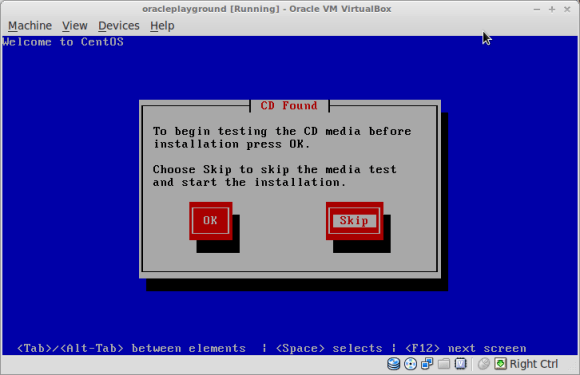
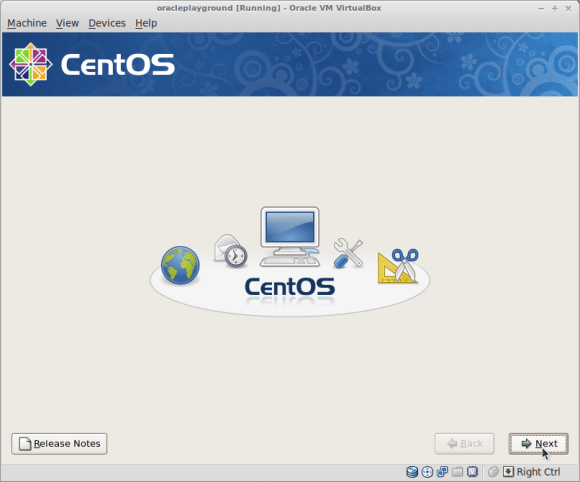
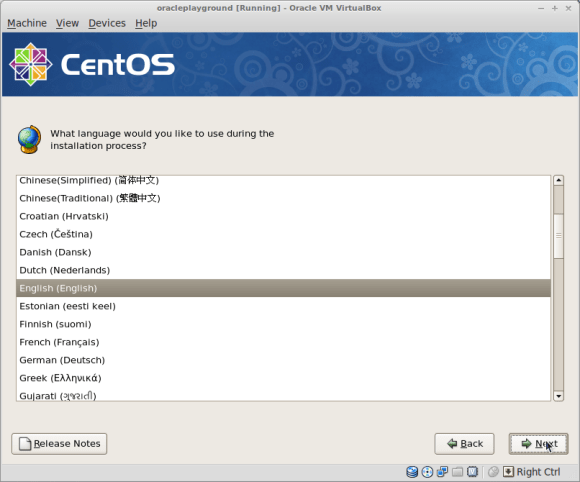
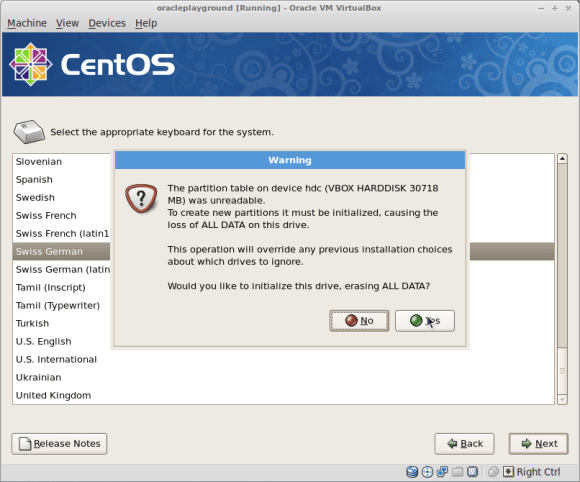
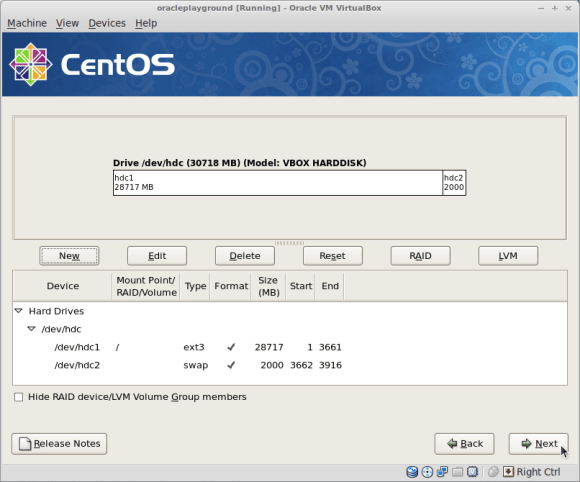
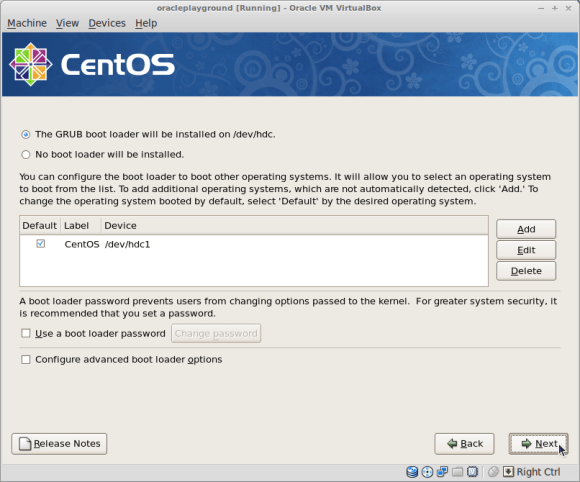
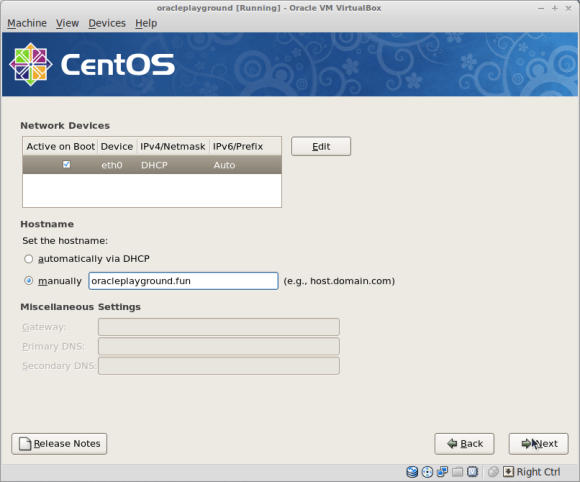
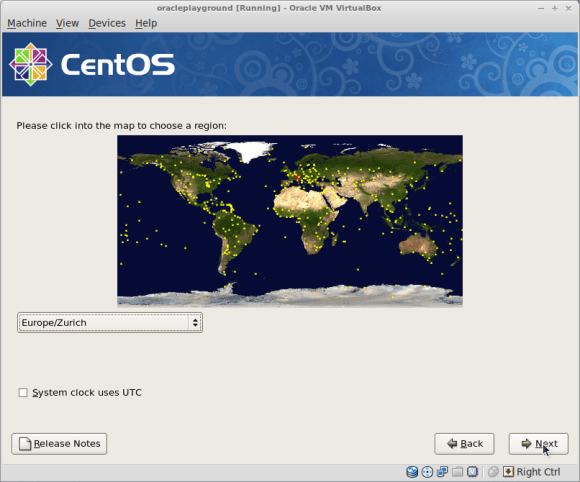
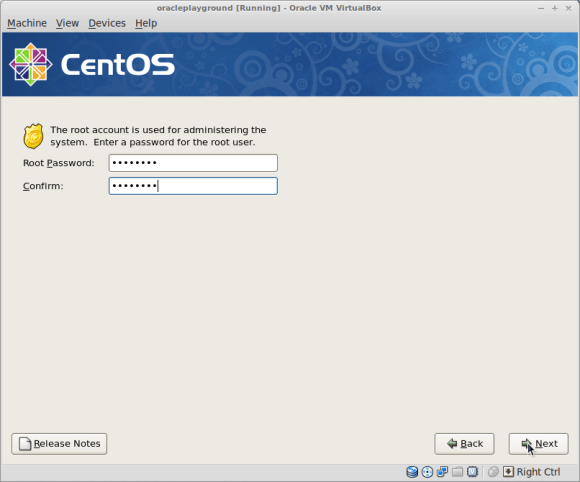
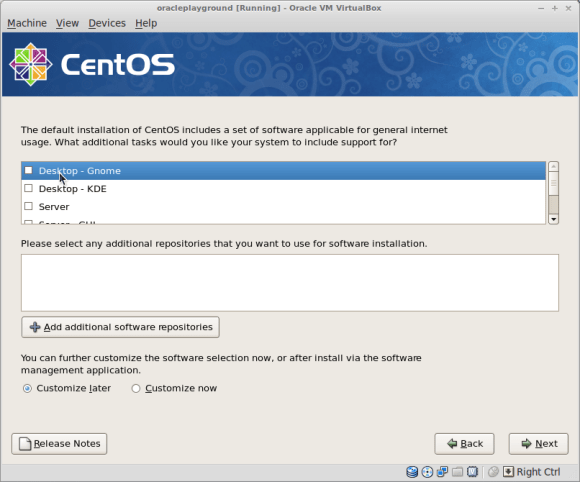
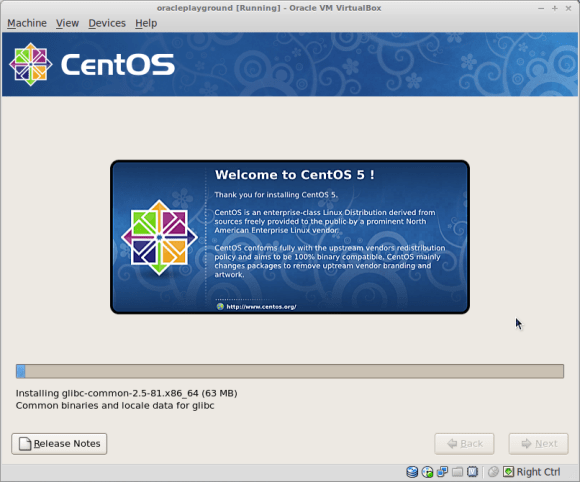
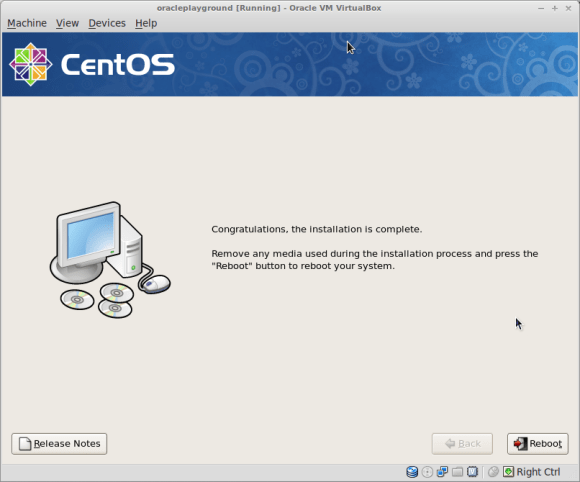
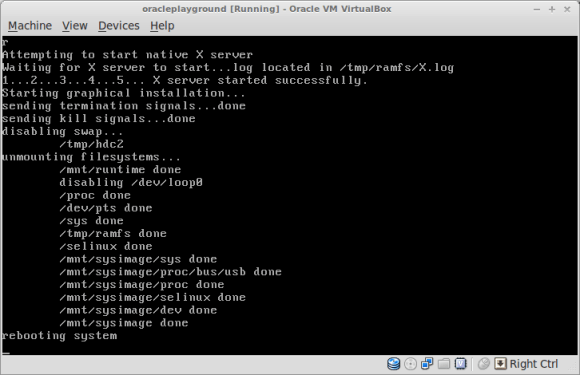
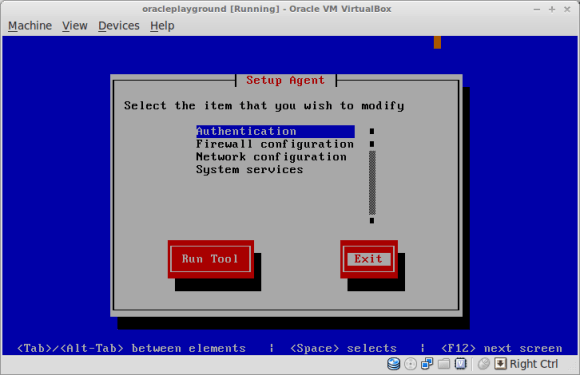
From this point onwards there will be some screen-shots to document the OS setup ( You would use tools like kickstart for installating a qualified server ).

Note: If your cursor is catched inside the Virtual Machine window you can use the “right CRTL” key to return to your workstation.


This was the last screenshot and for all remaining task I assume you’re logged in as root and provide the command line usage to proceed:

From now on you should be able to login through ssh. If you workstation runs on Linux/Solaris/OS X this should get you the connection:

ssh -o Port=3000 root@localhost

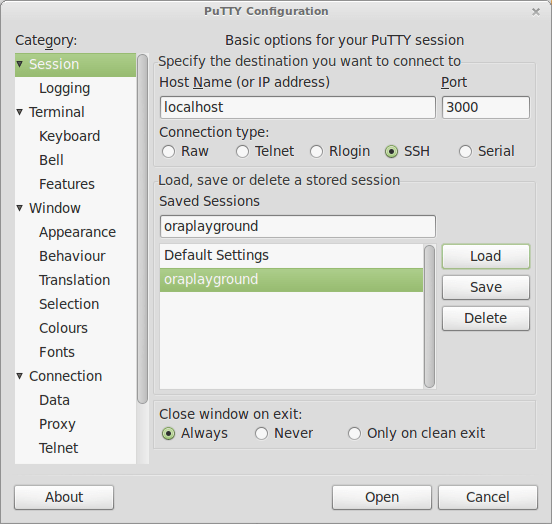
If you are working on windows, here is the putty example:

If you want to bring your system up to date now, you can use yum to download and install the latest patches:

Do not forget to set the proxy, if you need to use one ( btw. you can permanently set the proxy for yum in /etc/yum.conf ):

export http_proxy=proxy.yourdomain.com:8080

Update the system to the latest patchlevel:

yum update

Now is the perfect time to take a snapshot of your Virtual Machine. This will be very helpful in case you want to come back to this point later or if you damage your VM during one of the next steps. Reverting a snapshot takes minutes, doing all the work above again takes hours.

On your workstation take a snapshot of the Virtual Machine:

vboxmanage snapshot oracleplayground take "after OS installation"

If you want to export the Virtual Machine as appliance, you can do this, too. Appliances are useful if you want to import the whole Virtual Machine to a new one or if you want to transfer it to a another workstation.

vboxmanage export "oracleplayground" --output oracleplayground.ovf

For importing it ( on the same or any other host ):

vboxmanage import "oracleplayground.ovf"

That’s it for the basic Operating System setup. The next post will be about the various configuration tasks that need to be done before we may start installing the oracle software.

… there are plenty of excellent oracle posts out there. why another one?

When I started working with oracle I had one big problem: There is so much information around that it’s hard to decide where to begin. I started as most of the people would do:

… had a question or issue -> go to an internet search engine -> search -> millions of different answers, some correct, some useful, a lot of them misleading or even wrong

What I always was missing was a clean guide on how to setup a training environment that can be used as a base for trying all the interesting things. This includes, for example:

  • Setting up the Operating System
  • Preparing the Operating for Oracle
  • Installing the Oracle Software
  • Patching the Oracle Software
  • Create an ASM Instance and configure the Grid Infrastructure
  • Create and configure the database instance
  • Start playing with it …. and provide some examples

As you can see from the above list, this are not advanced topics, so we are back to what this blog is about: It is for all those who are at the beginning of their oracle experience. You will see as less screenshots as possible because I believe that you’re not going to learn how things work if you trust the graphical tools. Another big point which still is mess if I look around: Documentation. If you put your work in a script you are documented. People using the graphical tools tend to not document their work and this can be very dangerous if others try to continue. In qualified environments it’s even strictly forbidden to do anything on the server or database without going through an approval process. And it may be even forbidden to use any of the graphical tools.

So let’s try the experiment: Feel free to comment, feel free to correct me, feel free to ask…. Hopefully this is useful to some of you

I will start this blog with a little series on how you may prepare your os, install the oracle software and do the configuration tasks you need to do for getting an oracle instance up and running.

… and please don’t blame me for my English :)